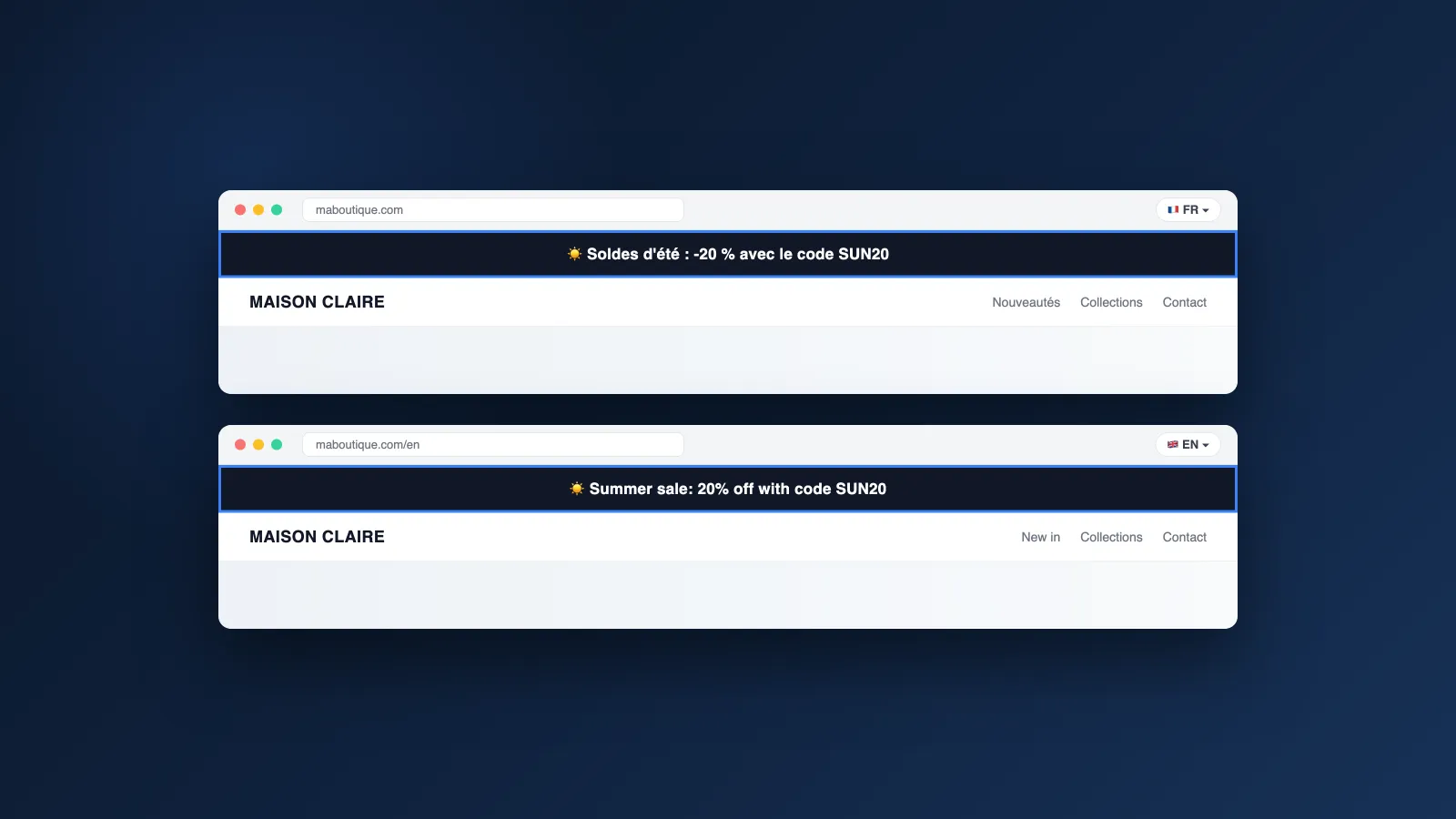
"Free shipping over €50", "20% off this weekend": the announcement bar is the very first text your visitors read, on every page. It's also, very often, the last one to get translated — plenty of multilingual stores show their promo in a single language.
The reason is simple: this bar is neither a product nor a page — it's a theme setting, so it follows a translation circuit of its own. Here are the three steps to translate it properly, and the traps merchants keep reporting.
Why the announcement bar escapes your translations
The bar's text is typed in the theme editor, inside the section's settings. Shopify's translation system therefore files it under "Theme content", far from the products and pages you think of translating:
| Where your bar comes from | How to recognize it | Where it gets translated |
|---|---|---|
| Native theme section | Set via Customize, in the header (Dawn and most themes) | Translate & Adapt or your translation app, under "Theme content" |
| Announcement bar app | Installed from the App Store (animated bars, countdowns…) | In the app itself, if it offers languages |
| Text hard-coded in the theme | Added in the Liquid code, often by a developer | Nowhere: it first needs to be made translatable in the code |
This article follows the most common case, the native theme section, then covers app bars. If your bar is hard-coded, start by moving it back into a theme section.
Step 1: write the announcement in the theme editor
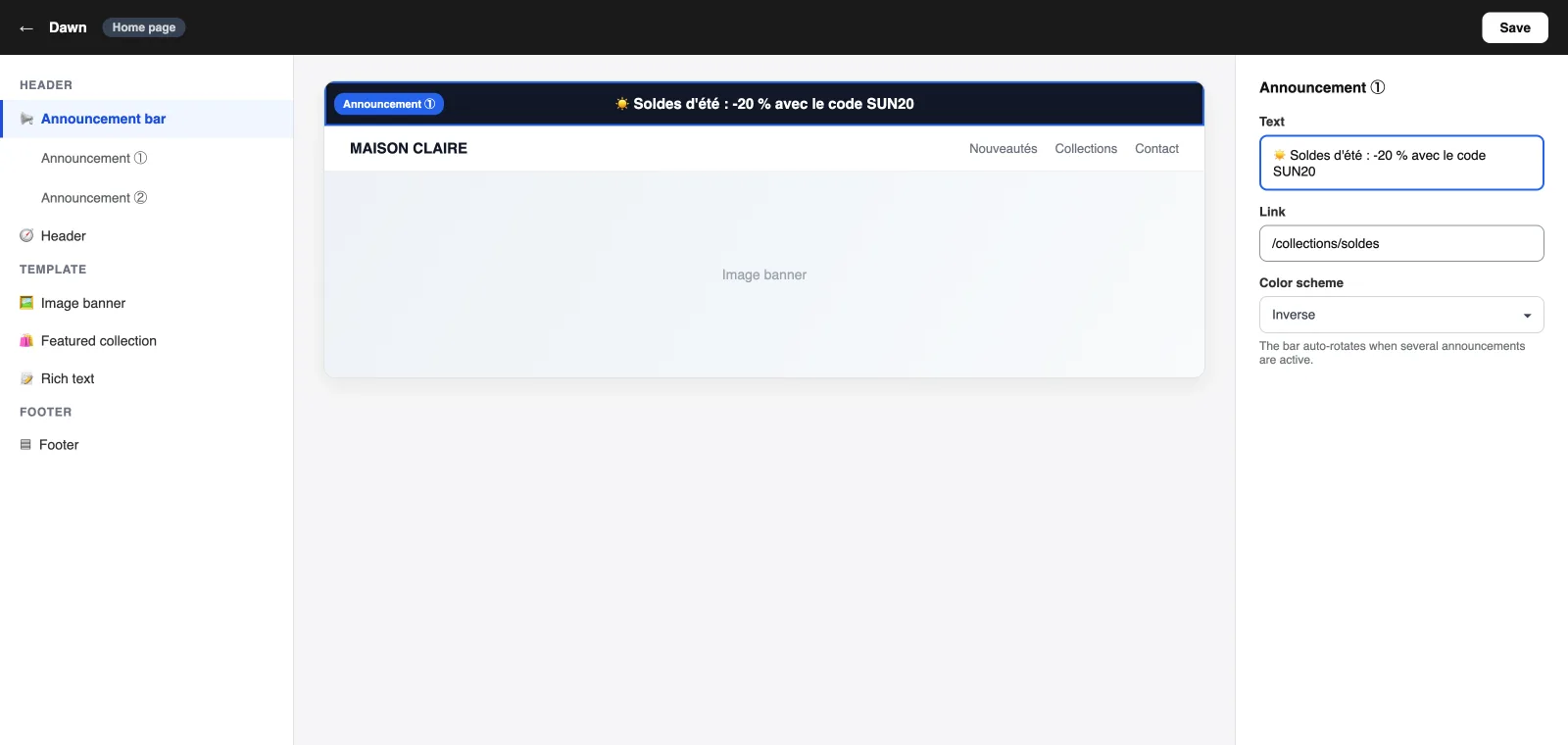
Everything starts from "Online Store" then "Customize". The announcement bar lives in the theme's header area, above the menu:
- Each announcement is a block with its text, link and color scheme
- Add several announcements and the bar rotates through them automatically
- Always write in the store's default language: it's the source your translations are built from
At this point, the bar exists in one language only. Your French-speaking visitors see the English text, until the next step.
Step 2: translate it in the theme content
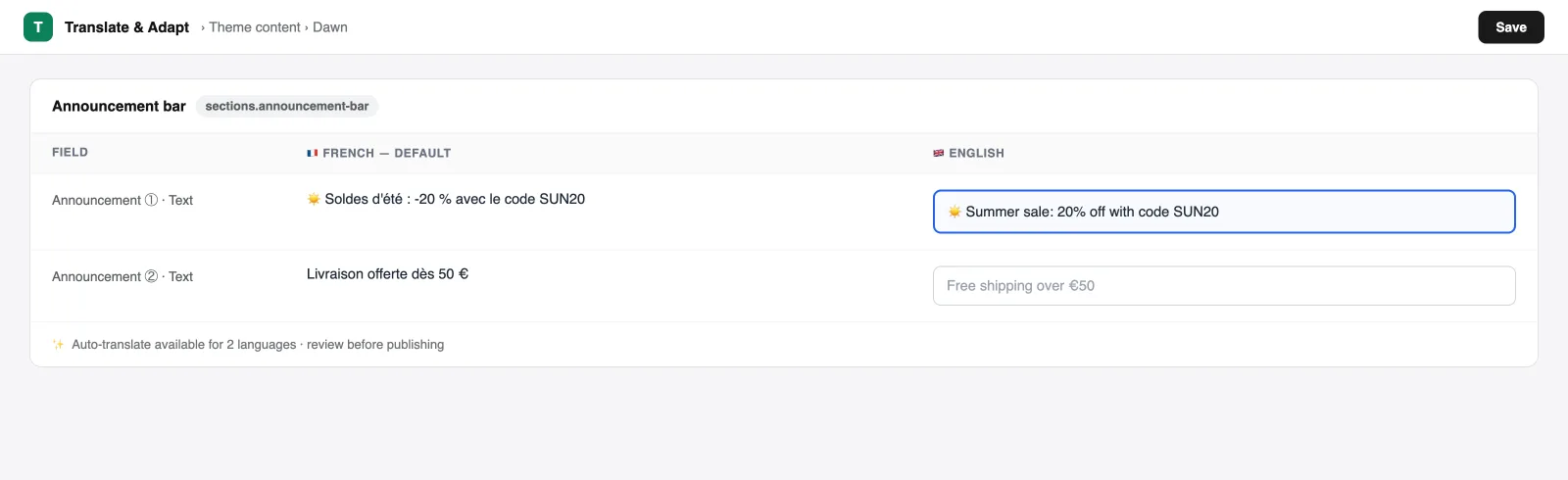
The bar is translated in Translate & Adapt, or in any translation app built on Shopify's native system. It hides under the "Theme content" section:
- Open Translate & Adapt, pick the target language, then "Theme content"
- Handy shortcut: from the theme editor, the "⋯" menu offers "Localize" under app actions
- Can't find it? Use the app's search and type an exact word from your announcement
- Enter or generate the translation, review it, then save
The change shows up immediately on the translated version of the store. Useful reminder: Translate & Adapt caps automatic translation at 2 languages.
Step 3: check emojis, markets and updates
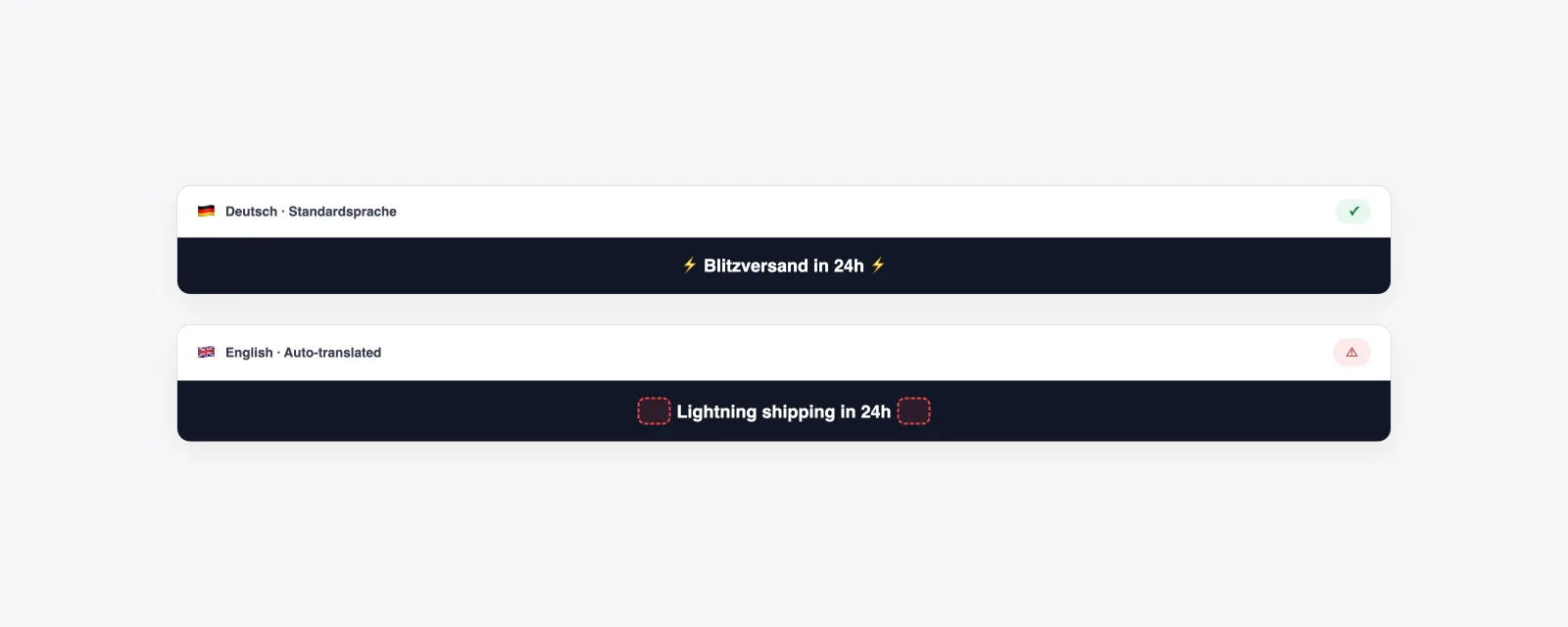
A trap reported on the Shopify forums: automatic translation often strips emojis and special characters. A German bar reading "⚡ Blitzversand ⚡" comes out in English without its lightning bolts.
- After each automatic translation, re-insert the emojis by hand in every language
- Two markets sharing one language (EU English and international English) are adapted market by market, not just language by language
- Every edit to the source text resets the clock: remember to revisit the translations after changing your offer
An app's bar gets translated in the app
If your bar comes from a dedicated app (animated bars, countdowns, shipping progress), its text is stored by the app: it will never show up in Translate & Adapt's theme content.
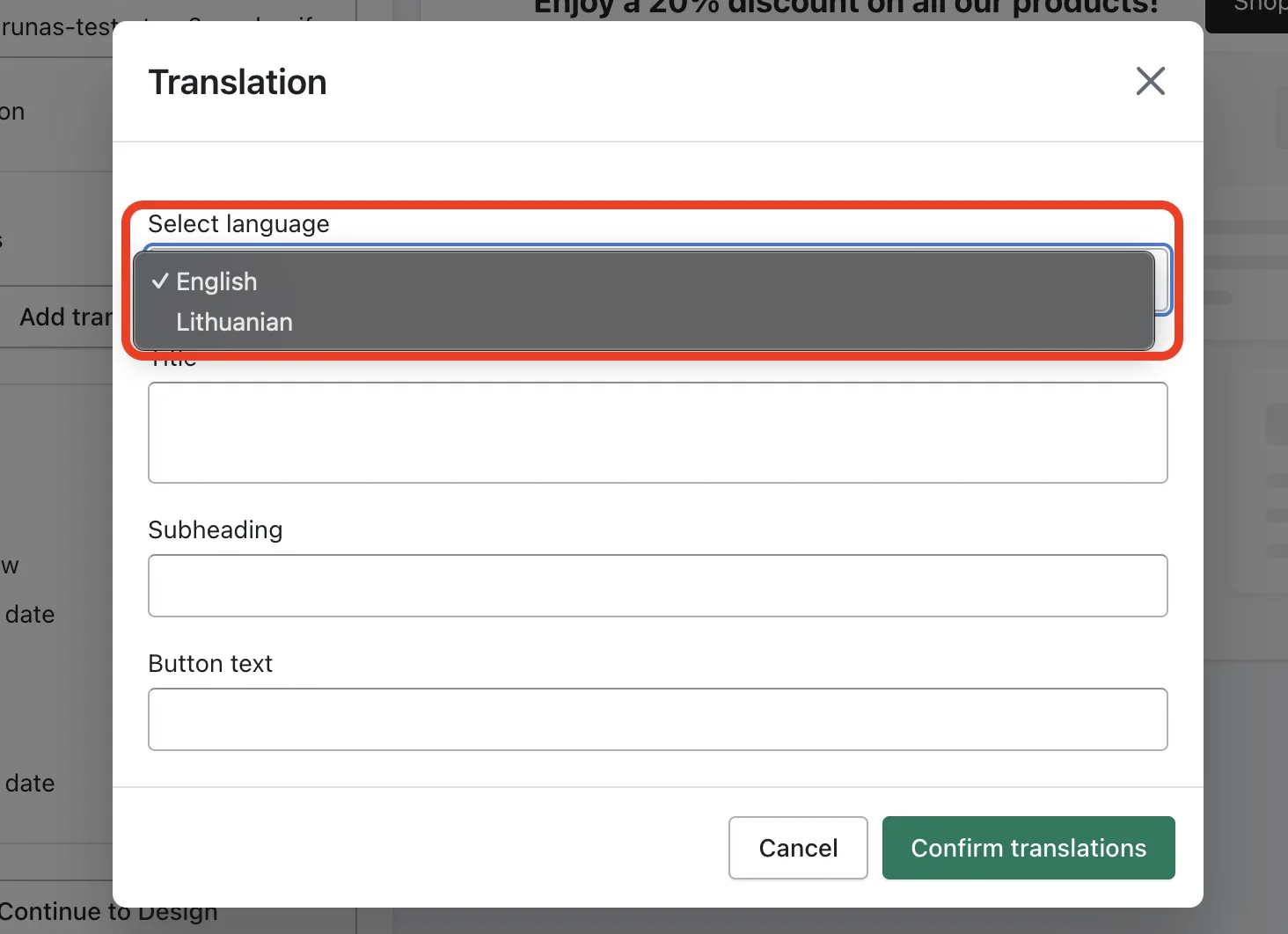
Look for a "Translations" or "Languages" option in the app's settings: that's where each message gets its per-language version. An app without one will show the same text to all your markets — worth checking before adopting it.
With Reversia, the bar follows the rest of the store
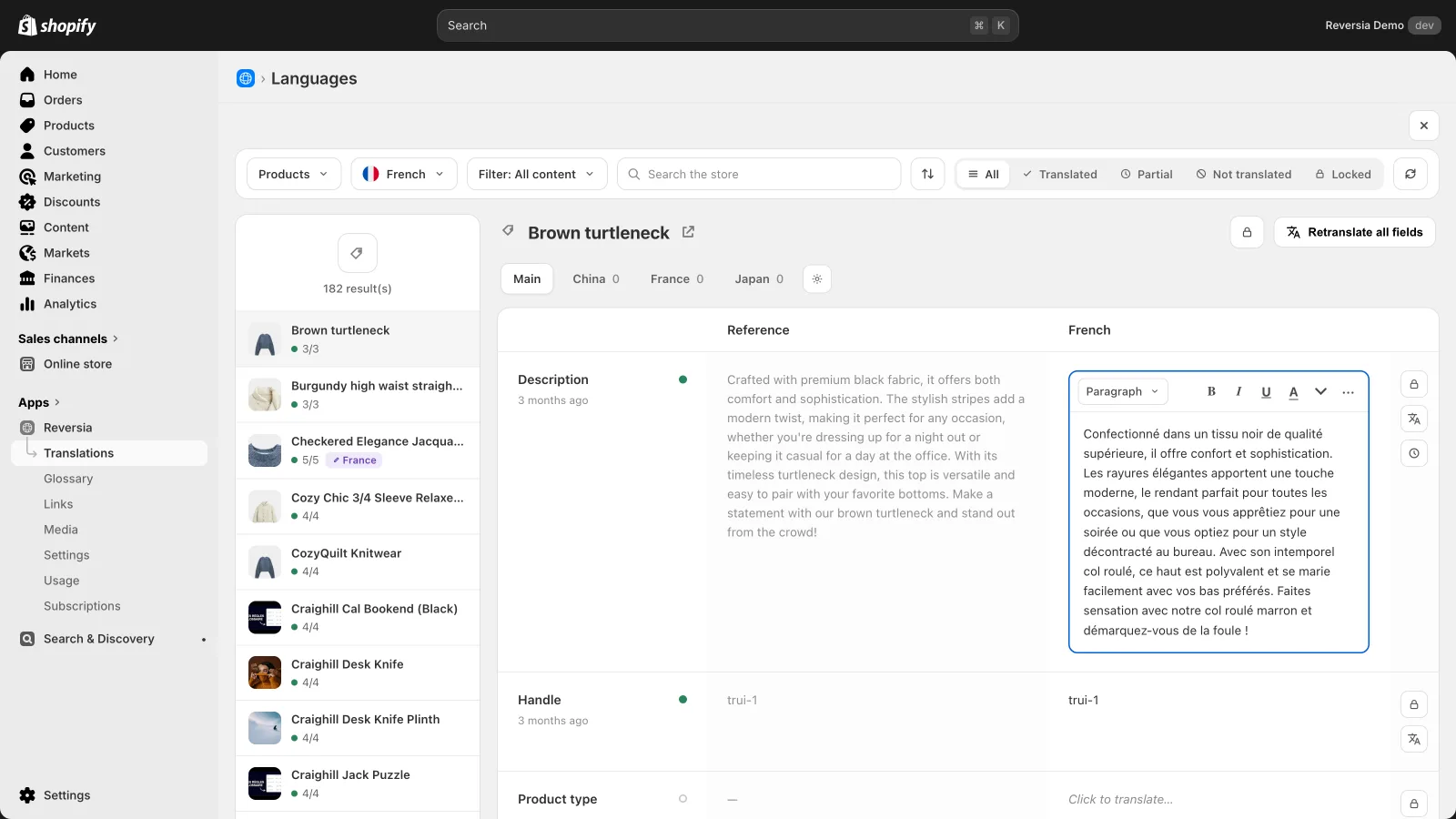
Reversia treats the announcement bar like any other theme content: it's translated along with your products, pages and notifications, in all your languages, by Claude, Anthropic's AI model.
- Change your announcement — the edit is detected and translated automatically
- Emojis, capitals and special characters are preserved in every language
- The glossary protects your promo codes and brand names, right into the bar
- Every text stays reviewable and adjustable in the editor before publishing
No more forgotten bar after an offer change: you edit the text once, and every language shows the right promo.
FAQ: translating the Shopify announcement bar
Where does the Shopify announcement bar get translated?
Under "Theme content" in Translate & Adapt or your translation app, because its text is a theme section setting. You can also reach it from the theme editor via the "⋯" menu, then "Localize".
Why does my bar stay in the original language on some markets?
Either the translation doesn't exist for that language, or the market shares a language with another one and needs market-by-market adaptation. Also check that the bar comes from the theme and not from an app, which manages its own languages.
Emojis disappear from my translated bar — what should I do?
It's a known effect of automatic translation, which often strips emojis and special characters. Go back over each language to re-insert them by hand, or use a translation tool that preserves them, like Reversia.
Does Reversia translate the announcement bar?
Yes. The bar is part of the theme content, which Reversia translates with the rest of the store in all your languages. Edits are detected automatically and every text stays reviewable in the editor.