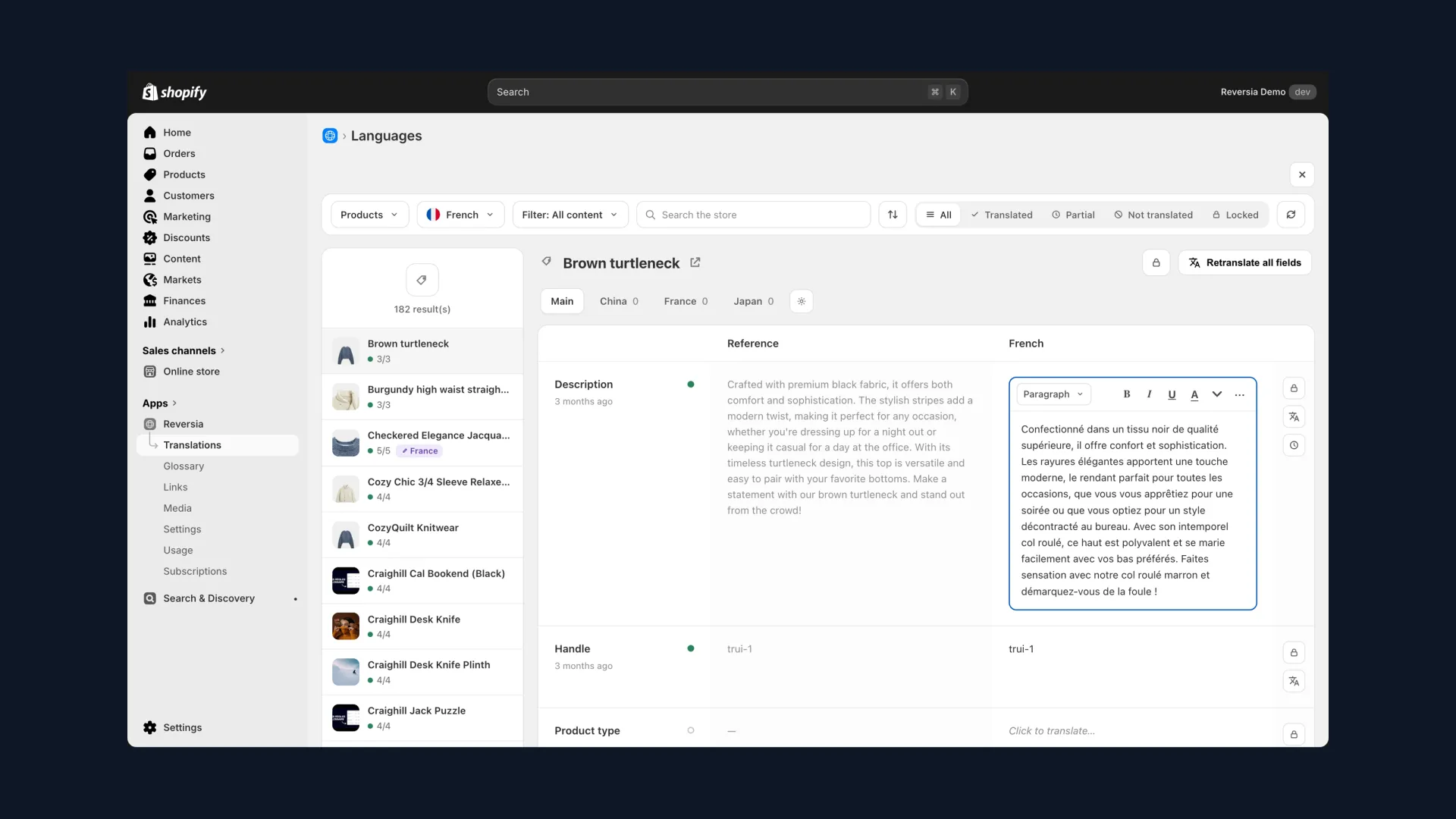
Metafields and metaobjects have become the backbone of rich product pages on Shopify - size guides, technical specifications, care instructions, product FAQs.
But when you take your store multilingual, these custom fields are usually the first thing left behind. The result: half-translated product pages, and international visitors who bounce.
Metafields and metaobjects: a quick refresher
A metafield is a custom field that stores information not covered by Shopify's standard settings. You define it once, then fill it in product by product, collection by collection.
- Fabric composition and care instructions for a garment
- Polarization level of a pair of sunglasses
- Size guide or dimensions table
- Technical specifications of an electronic device
- Regulatory information or certifications
A metaobject goes one step further: it bundles several metafields into a reusable structure. Think of a « production workshop » card (name, description, photo) displayed on every relevant product page.
This content is visible to your customers and indexed by Google. Leaving it in your default language hurts both your multilingual SEO and buyer trust.
Method 1: Translate & Adapt, free manual translation
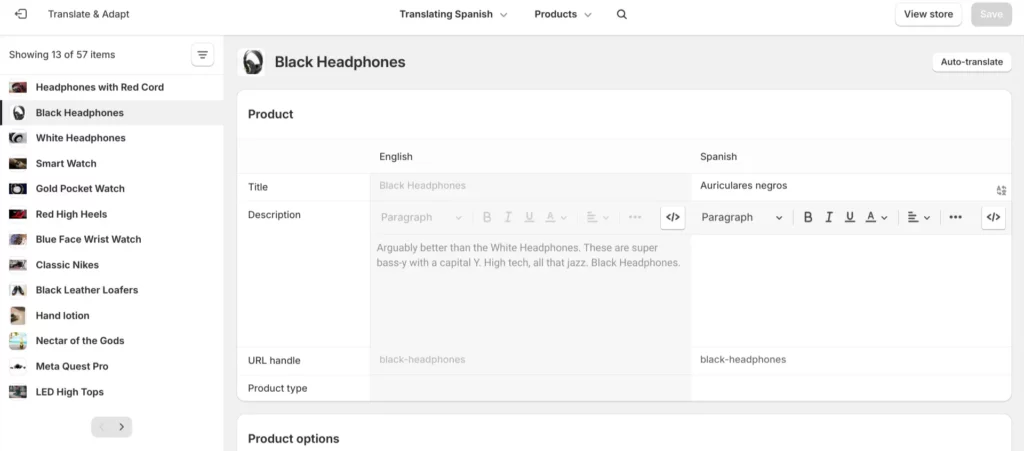
Translate & Adapt is Shopify's official translation app, free for all merchants. It offers a side-by-side editor - your original content on the left, your translations on the right.
To translate a metafield:
- Open Translate & Adapt from "Apps" in your Shopify admin.
- Select the target language in the dropdown at the top of the page.
- Open the relevant resource type (product, collection, page, blog post).
- Pick the item you want to translate.
- Translatable metafields appear below the standard fields - type your translations in the right-hand column, then save.
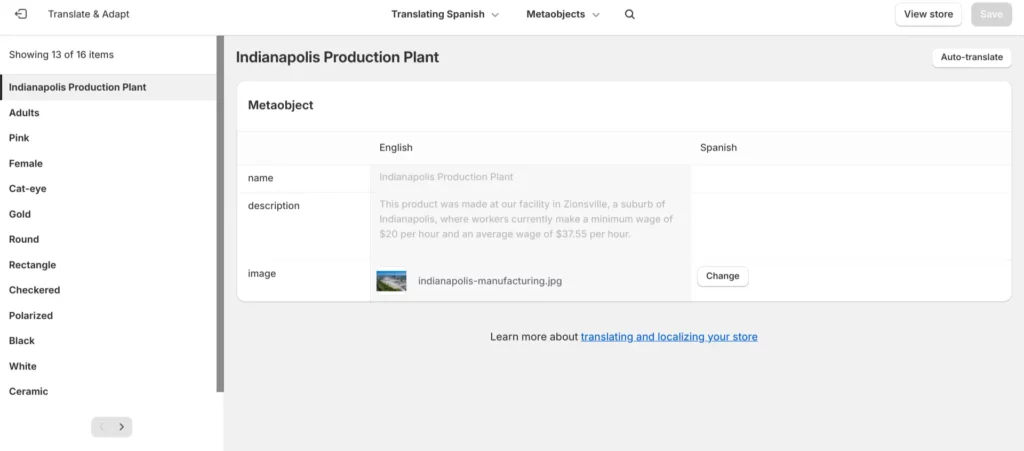
Metaobjects follow the same logic, with one difference - they are a resource of their own in the app, at the same level as products or collections.
- In Translate & Adapt, open the "Metaobjects" resource.
- Select the metaobject you want to translate.
- Fill in the empty fields in the right-hand column, then save.
You hit the limits quickly: everything is manual, field by field, and the built-in auto-translation is capped at two languages. Every new product or new language means starting over.
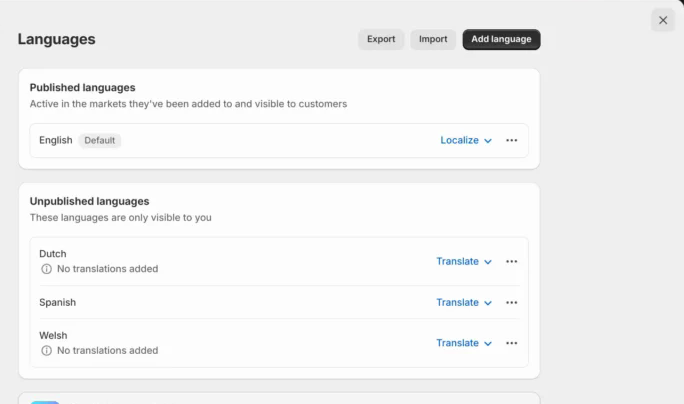
Method 2: CSV export / import
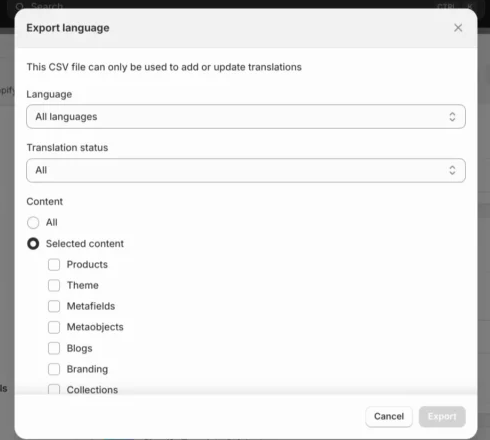
To handle large volumes or hand translation over to an external provider, Shopify lets you export all your translations to a CSV file - metafields and metaobjects included.
- Open "Settings" then "Languages" in your Shopify admin.
- Click "Export".
- Choose the language(s), translation status and content to include - tick "Metafields" and "Metaobjects".
- Confirm - the CSV file is sent to you by email.
The file contains one row per translatable field, organised in eight columns:
| Column | Content |
|---|---|
| Type | The resource type (product, collection, metaobject…) |
| Identification | The technical ID of the resource |
| Field | The field concerned (title, body_html, metafield…) |
| Locale | The target language of the row |
| Market | The associated market, if any |
| Status | Empty if the translation is up to date, "outdated" otherwise |
| Default content | The content in your store's default language |
| Translated content | Your translation - the only column you should edit |
Only edit the "Translated content" column. And if you open the file in a spreadsheet program, make sure the delimiter is set to commas, or your columns will be shifted on import.
- Go back to "Settings" then "Languages".
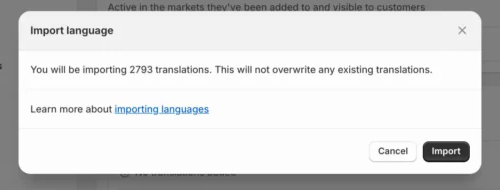
- Click "Import" and add your CSV file.
- Choose whether to overwrite existing translations.
- Review the import summary, then confirm.
Method 3: automatic translation with Reversia
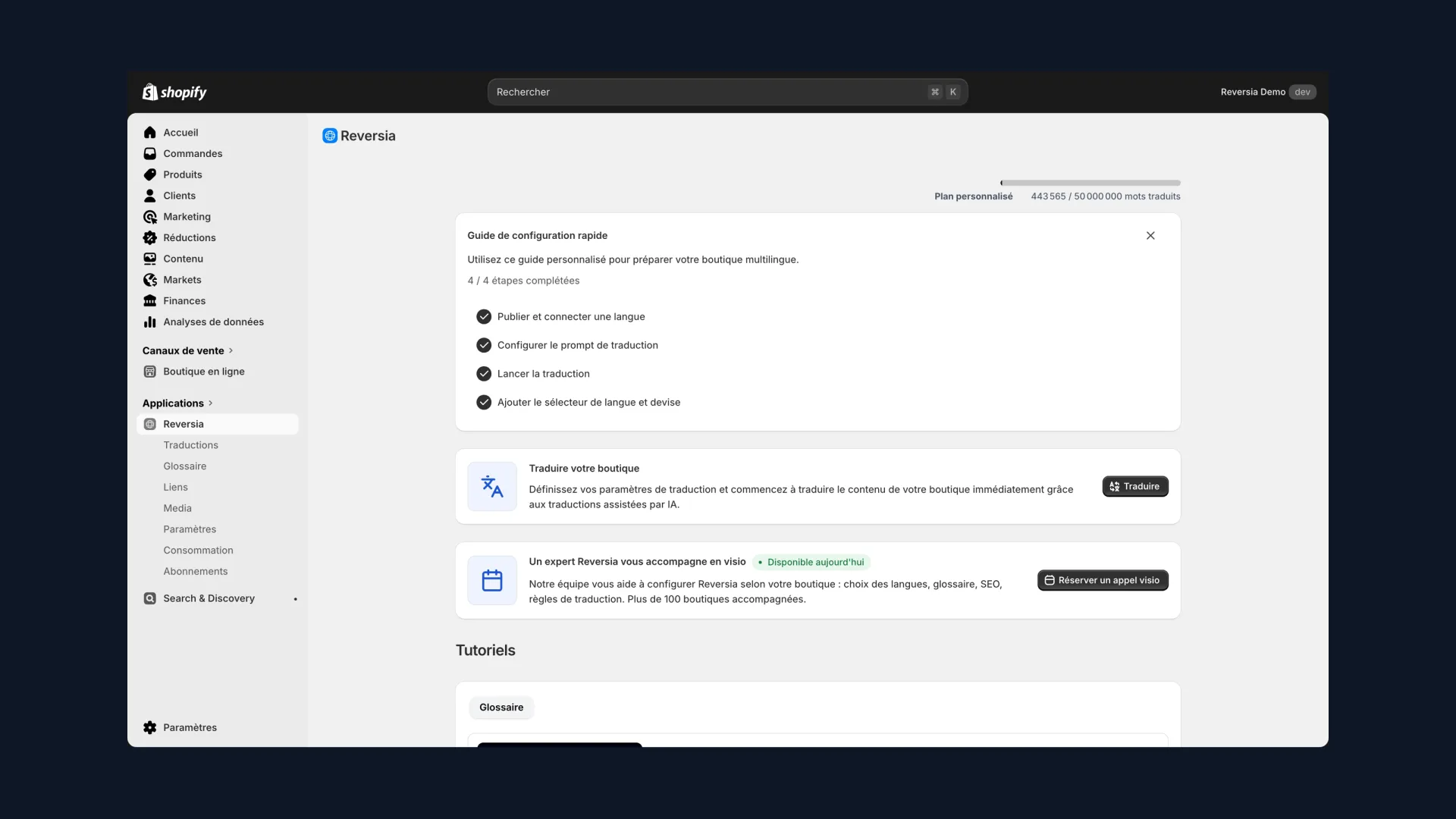
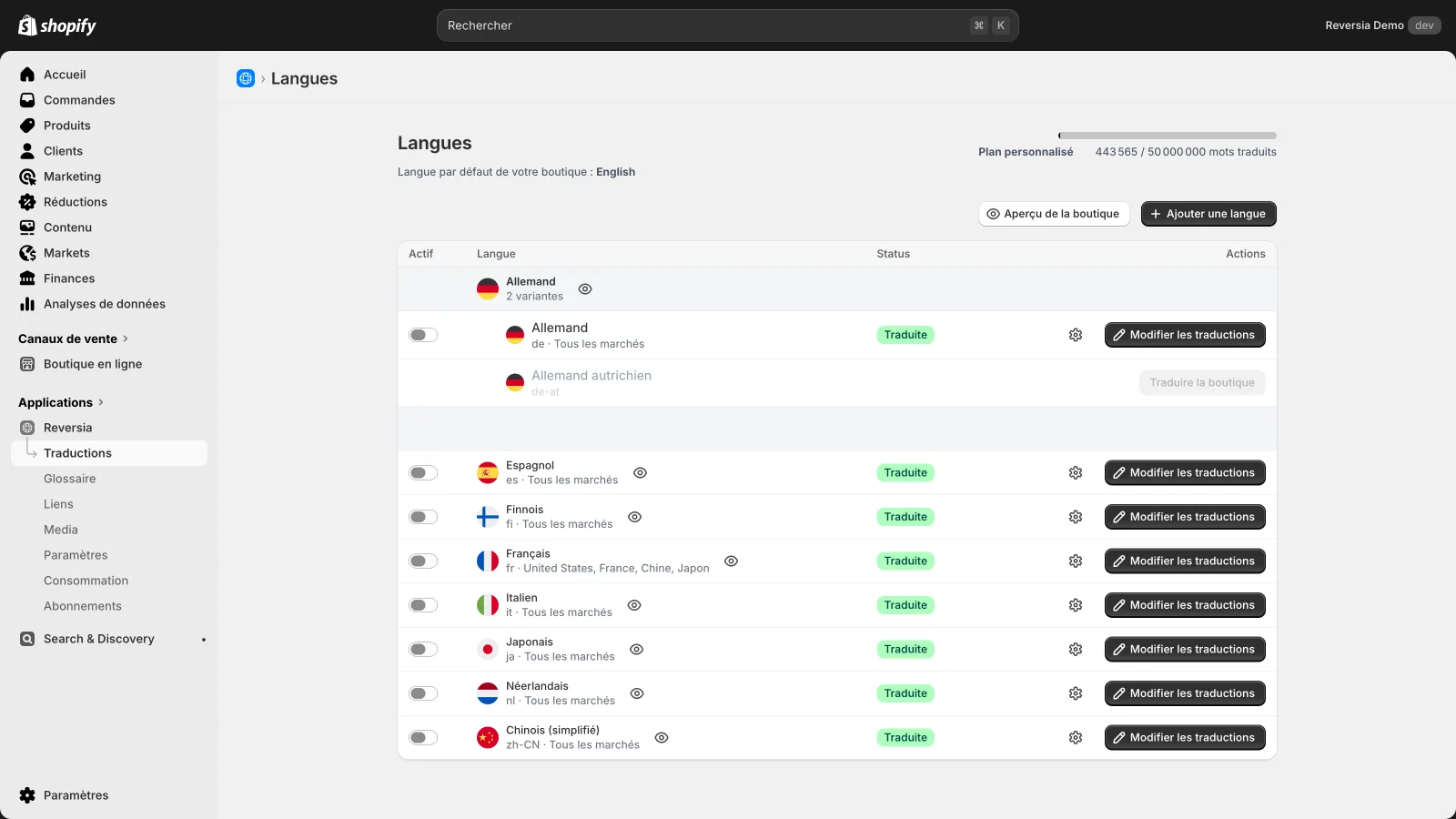
The two previous methods share the same flaw - they don't scale. Reversia approaches the problem the other way around, automatically detecting and translating all of your store's content, metafields and metaobjects included, powered by Anthropic's Claude AI.
- Metafields and metaobjects detected and translated automatically - no field left behind
- A new language translated in minutes, whatever the catalogue size
- Smart glossary - never-translate terms, forced translations, brand prompts
- Automated multilingual SEO (URLs, hreflang, metadata, alt text)
- Translations stored in Shopify - you remain 100% owner
- Human support 7 days a week by email and phone
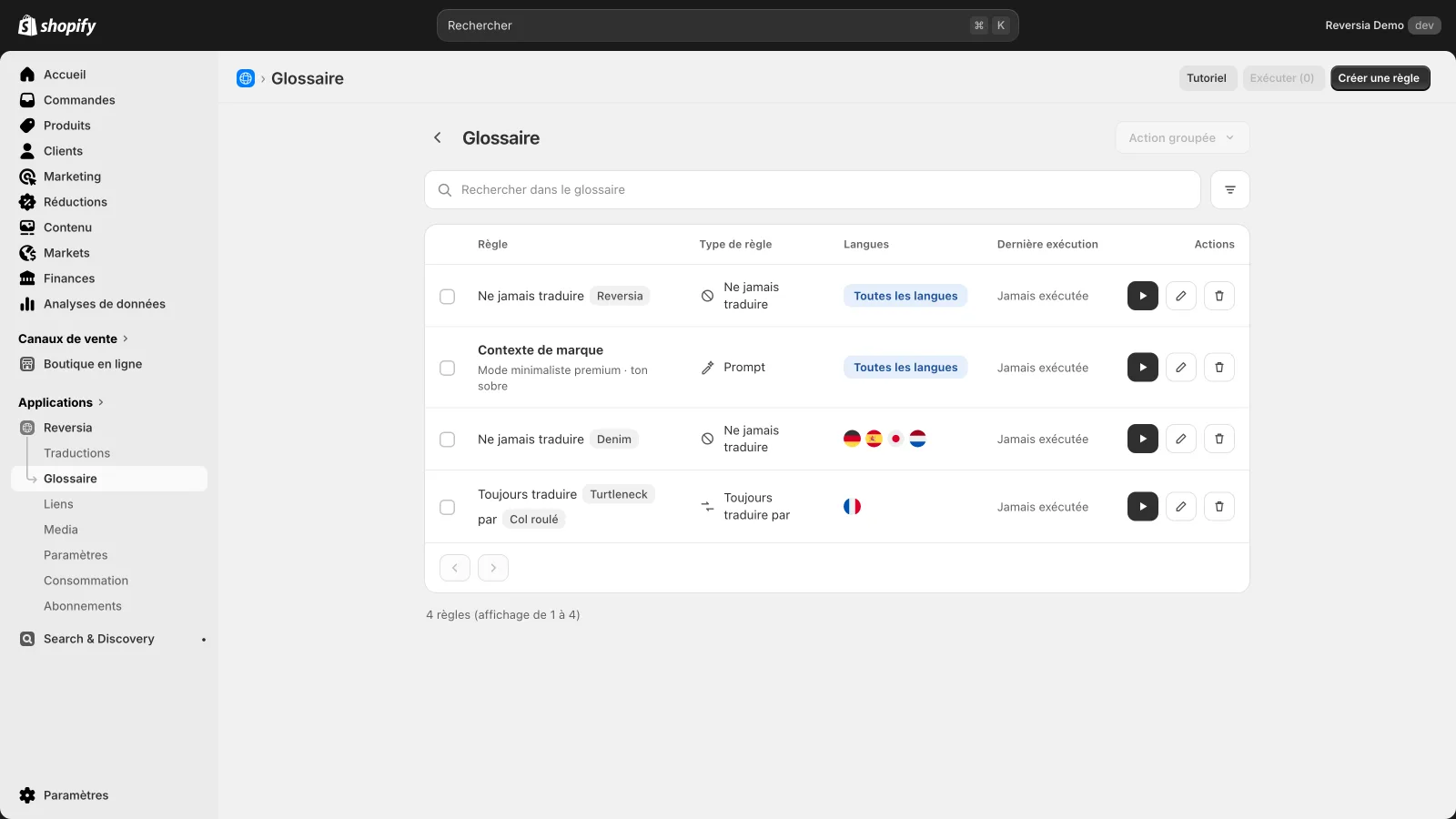
It's the right fit for catalogues packed with custom fields, where manual translation becomes unmanageable from the second language onwards. Plans start at $299 per month.
Which method should you choose?
It all depends on the volume of custom fields, the number of target languages and how often your catalogue changes.
| Method | Cost | Effort | Best for |
|---|---|---|---|
| Translate & Adapt | Free | High (fully manual) | A few fields, one or two languages |
| CSV export / import | Free | Medium (file handling) | Large one-off volumes, external translator |
| Reversia | From $299/month | Minimal (automatic) | Rich catalogues, several languages, frequently updated content |
A store adding products every week in three or more languages quickly pays back an automated solution - the time spent in Translate & Adapt or CSV files becomes the real hidden cost.
FAQ: translating Shopify metafields
Does Shopify translate metafields automatically?
No. Adding a language in Shopify doesn't translate any content. You need Translate & Adapt (manual), a CSV export, or an automatic translation app like Reversia.
Can all metafields be translated?
Only text-type metafields (single line, multi-line, rich text) are translatable. Reference, JSON or file types are not - check your definitions under Settings then Custom data.
Is Translate & Adapt really free?
Yes, the app is free and built by Shopify. However, the built-in automatic translation is limited to two languages - beyond that, every translation has to be typed in by hand.
Does Reversia also translate metaobjects?
Yes. Reversia automatically detects your store's metaobjects and translates them into all your languages, including new ones you create later.