You've translated your store's copy, but your images stay the same in every language. A « Soldes d'été » banner shows up untouched for your German customers, and your size guide remains unreadable in Madrid.
The problem: Translate & Adapt, Shopify's free translation app, offers no simple way to localize images - neither on products nor in the theme. Here's how to close that gap with Reversia.
Why localize your images?
Part of your visuals carry meaning that doesn't cross borders. The most common cases:
- Text baked into the image: promo banners, size guides, product infographics
- Campaign visuals designed for one market (sales, holidays, seasons flipped across hemispheres)
- Packshots displaying a price, a currency or packaging in a given language
- Lifestyle photos that resonate differently depending on the market's culture
A visitor who sees a visual in their own language understands faster and buys with more confidence. Conversely, an image left in the original language gives away a half-translated store.
The Translate & Adapt limitation
Translate & Adapt covers text fields: titles, descriptions, metadata. But for images, Shopify's official app offers no per-language replacement flow.
- Product images: no way to serve a different visual per language from the admin
- Theme images (banners, sections, sliders): no localization interface at all
- Only exception: some metaobject image fields, case by case
In practice, merchants work around it by duplicating themes or hacking Liquid. It's heavy, fragile, and doesn't scale. Reversia builds this natively, in two places:
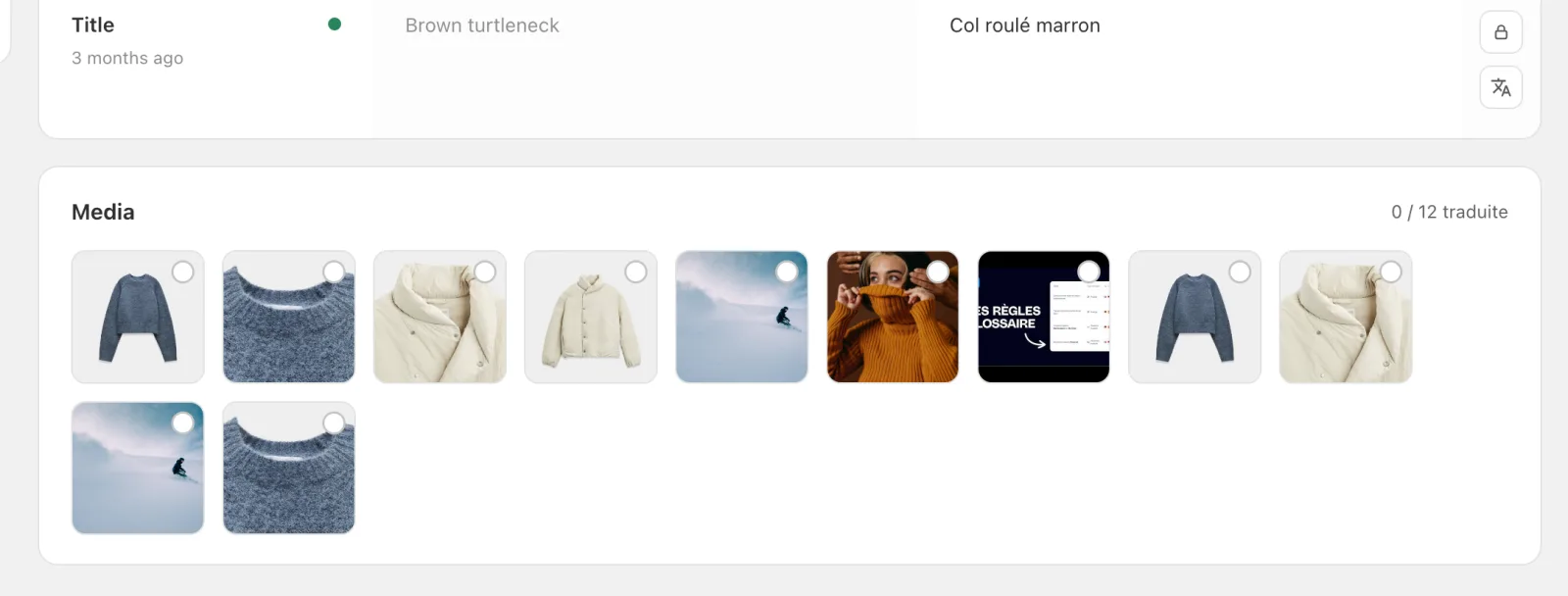
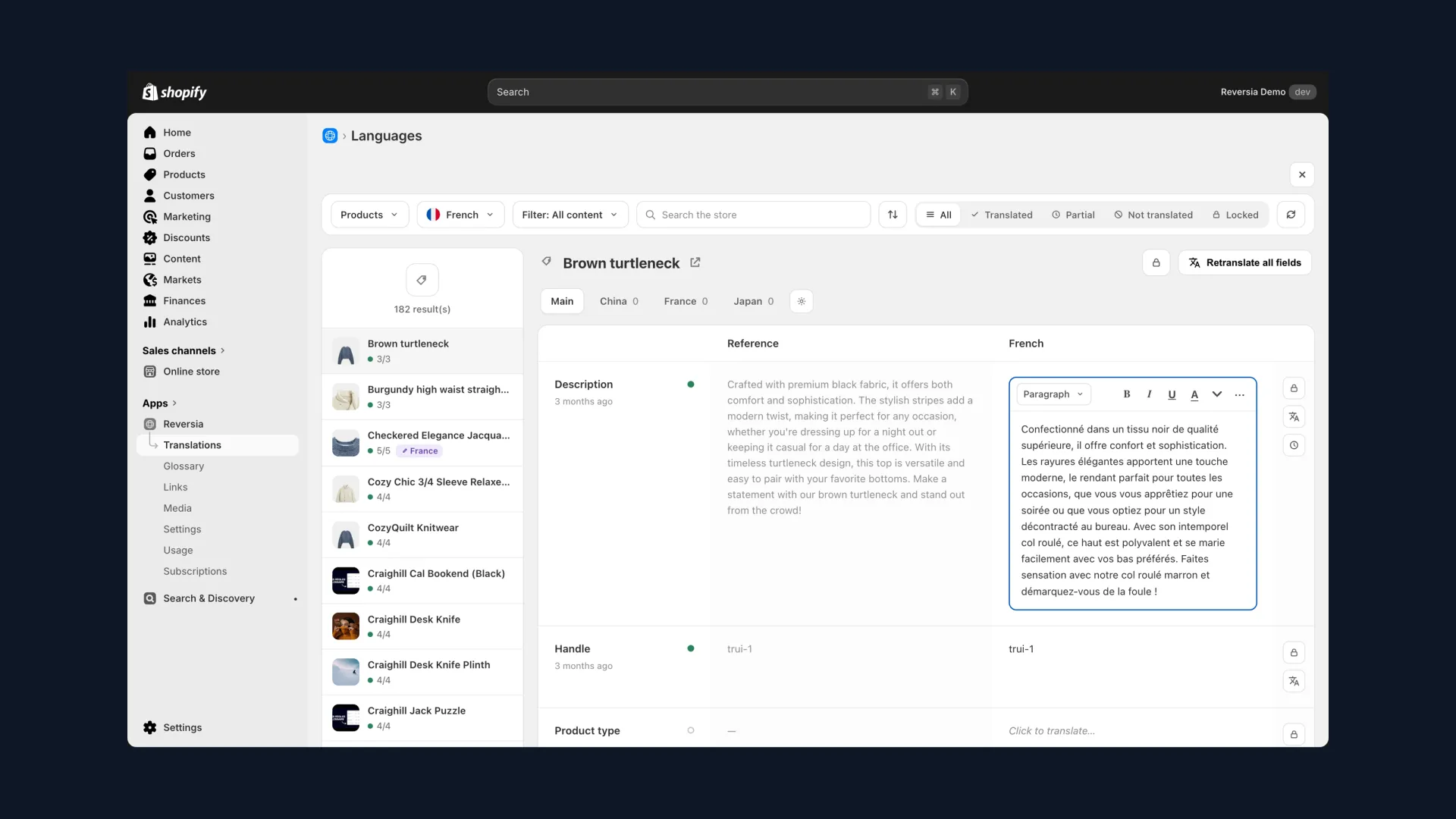
1. Localize product images, in Translations
Open Reversia then « Translations », pick your target language and click a product. Below the text fields, a « Media » section lists all the product's visuals, with a progress counter.
- Open « Translations » in Reversia and select the target language.
- Click the product in the list.
- Scroll down to the « Media » section and click the image you want to localize.
A window opens with the original image on the left and its localized counterpart on the right. Two options: import a file from your computer, or pick a visual already in your Shopify library.
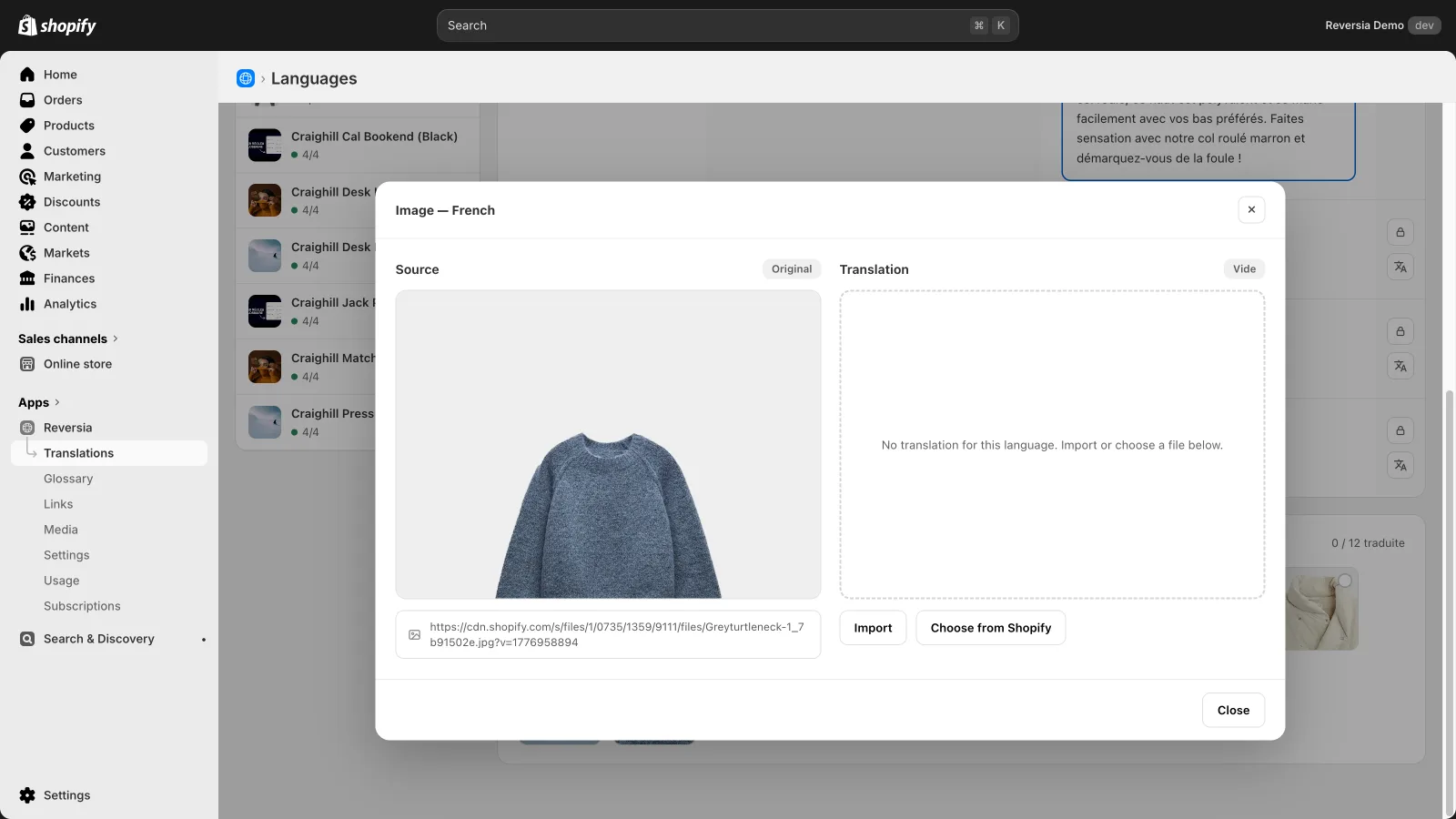
- Click « Import » to upload the localized variant, or « Choose from Shopify » to reuse an existing file.
- Confirm. The original keeps serving every language without a variant.
- Repeat for each visual you want to adapt, following the Media section counter.
That's it: on the storefront, visitors of each language see their version of the image, with no product duplication and no theme surgery.
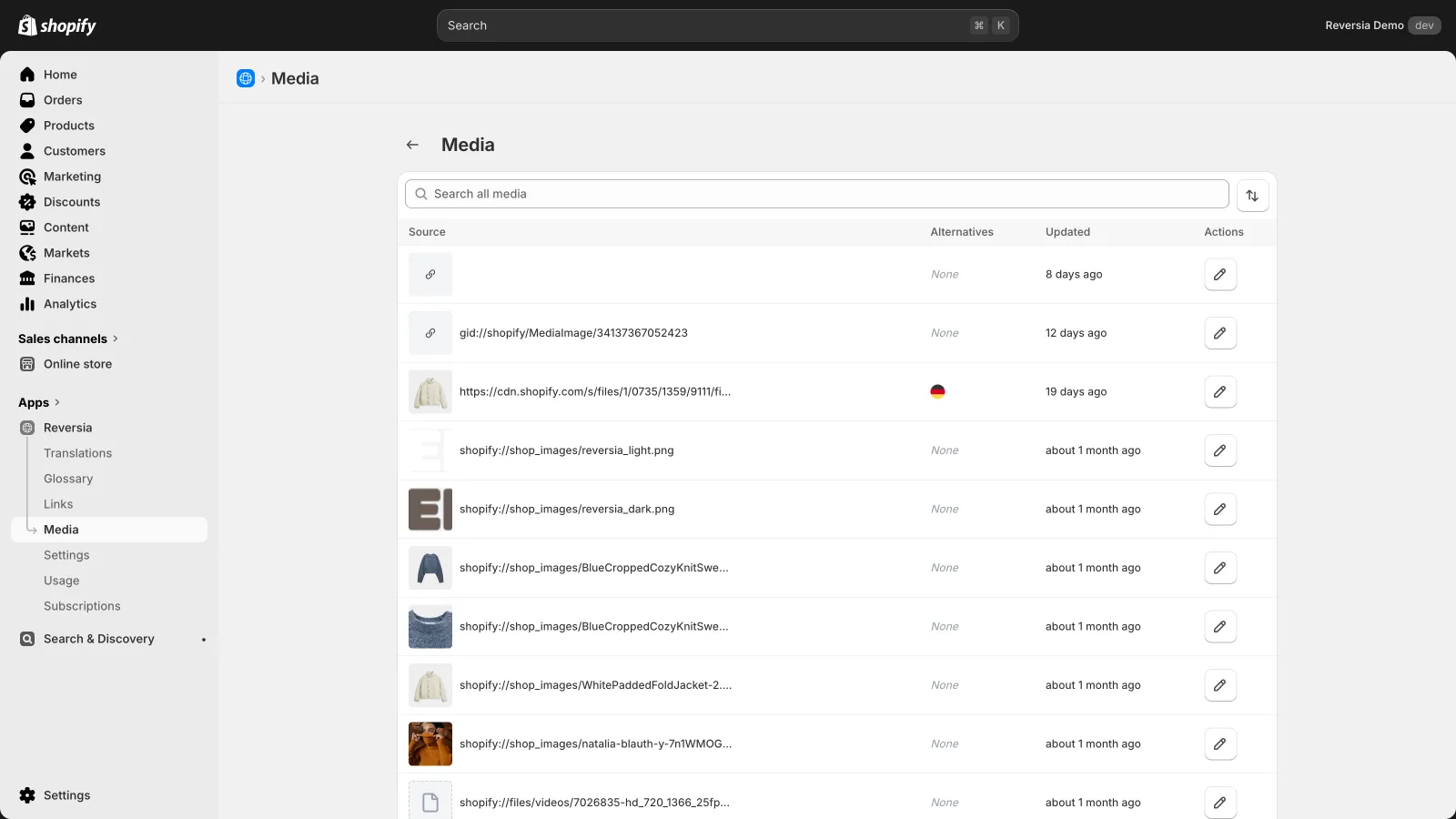
2. Localize theme images, in the Media section
Homepage banners, section images, notification visuals: these images don't belong to any product. Reversia gathers them in the « Media » section, an inventory of every media detected across the store.
- Open « Media » in the Reversia menu.
- Find the visual through search or by browsing the list. The « Alternatives » column shows which languages are already covered.
- Click the row's edit button.
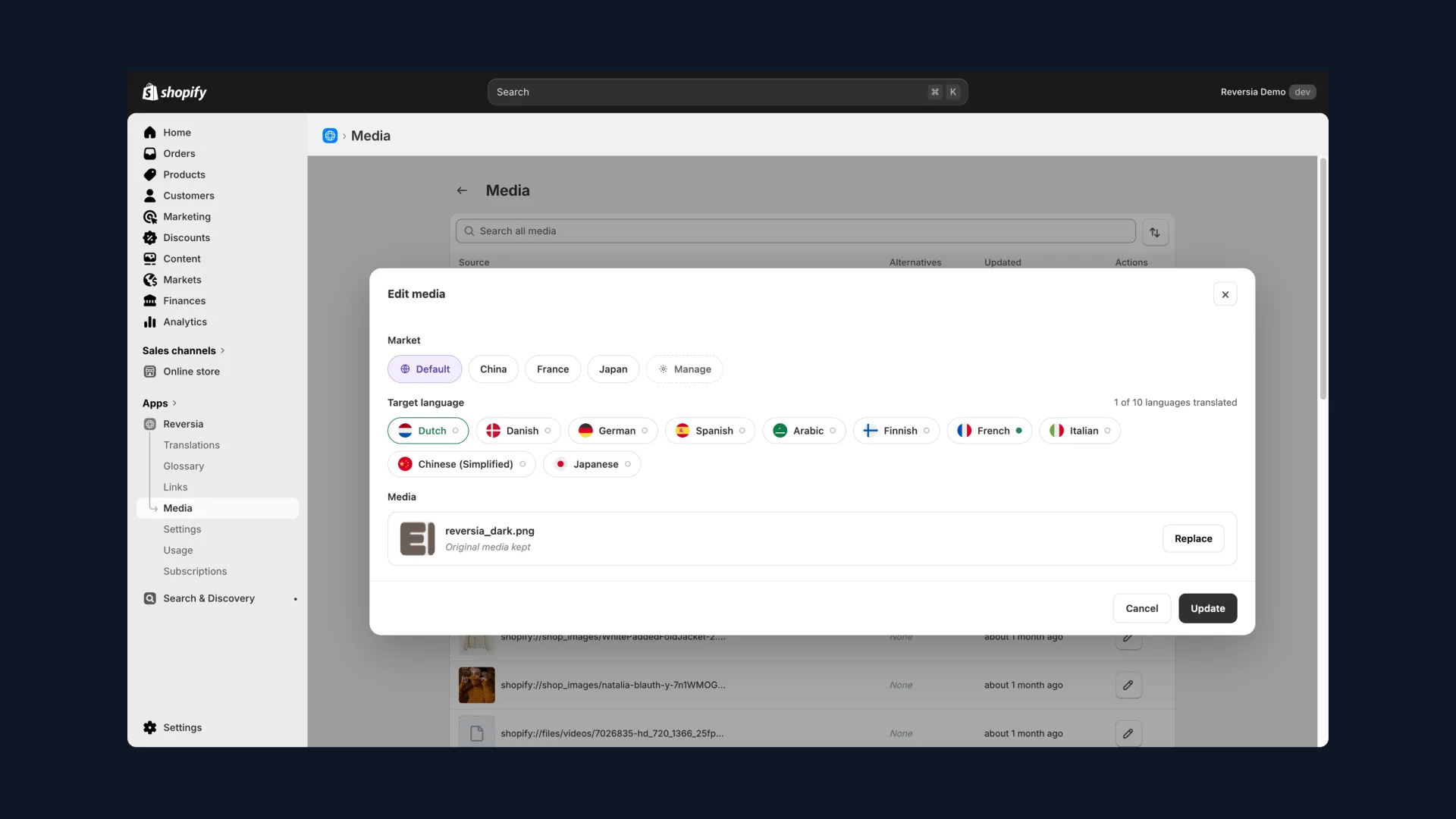
The editor opens: first pick the market (default, or a specific one like France or Japan), then the target language, and replace the visual.
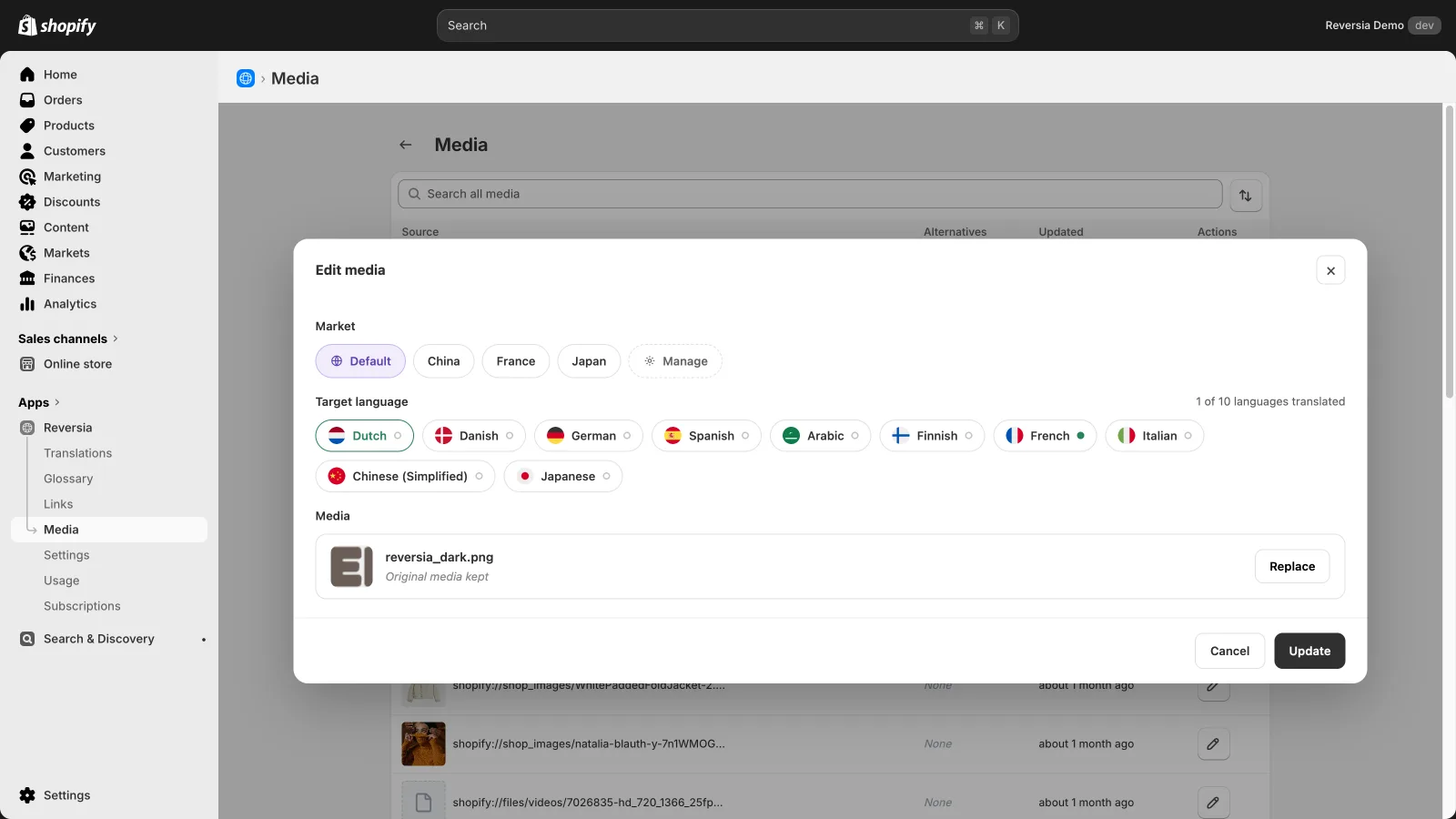
- Select the relevant market, or leave « Default » for all.
- Click the target language in the list.
- Click « Replace », upload the variant, then confirm with « Update ».
Which images should you localize first?
No need to duplicate your entire visual catalogue. Focus the effort where the image carries text or a marketing message.
| Image type | Localize it? |
|---|---|
| Banners and visuals with baked-in text | Yes, top priority |
| Size guides and infographics | Yes, essential for comprehension |
| Campaign visuals (sales, holidays) | Yes, per market and local calendar |
| Neutral product packshots | Rarely necessary |
| Lifestyle photos | Depending on the market's cultural codes |
As for everything else (copy, metafields, SEO), Reversia translates your whole store automatically with Anthropic's Claude AI. Localized images complete that coverage, from the same admin.
FAQ: localizing Shopify images
Does Translate & Adapt let you change an image per language?
No. Shopify's free app translates text fields but offers no flow to replace a product or theme image per language. That's exactly what Reversia adds.
What happens if I don't provide a variant for a language?
The original image keeps showing. You can localize your visuals progressively, language by language, without ever breaking the storefront.
Can you localize an image per market rather than per language?
Yes. Reversia's media editor lets you target a Shopify market (France, Japan…) on top of the language, to serve a different visual per geographic zone.
Does image localization help SEO?
Indirectly, yes. Visuals in the visitor's language improve engagement and conversion, and Reversia also translates image alt texts, which Google does read directly.