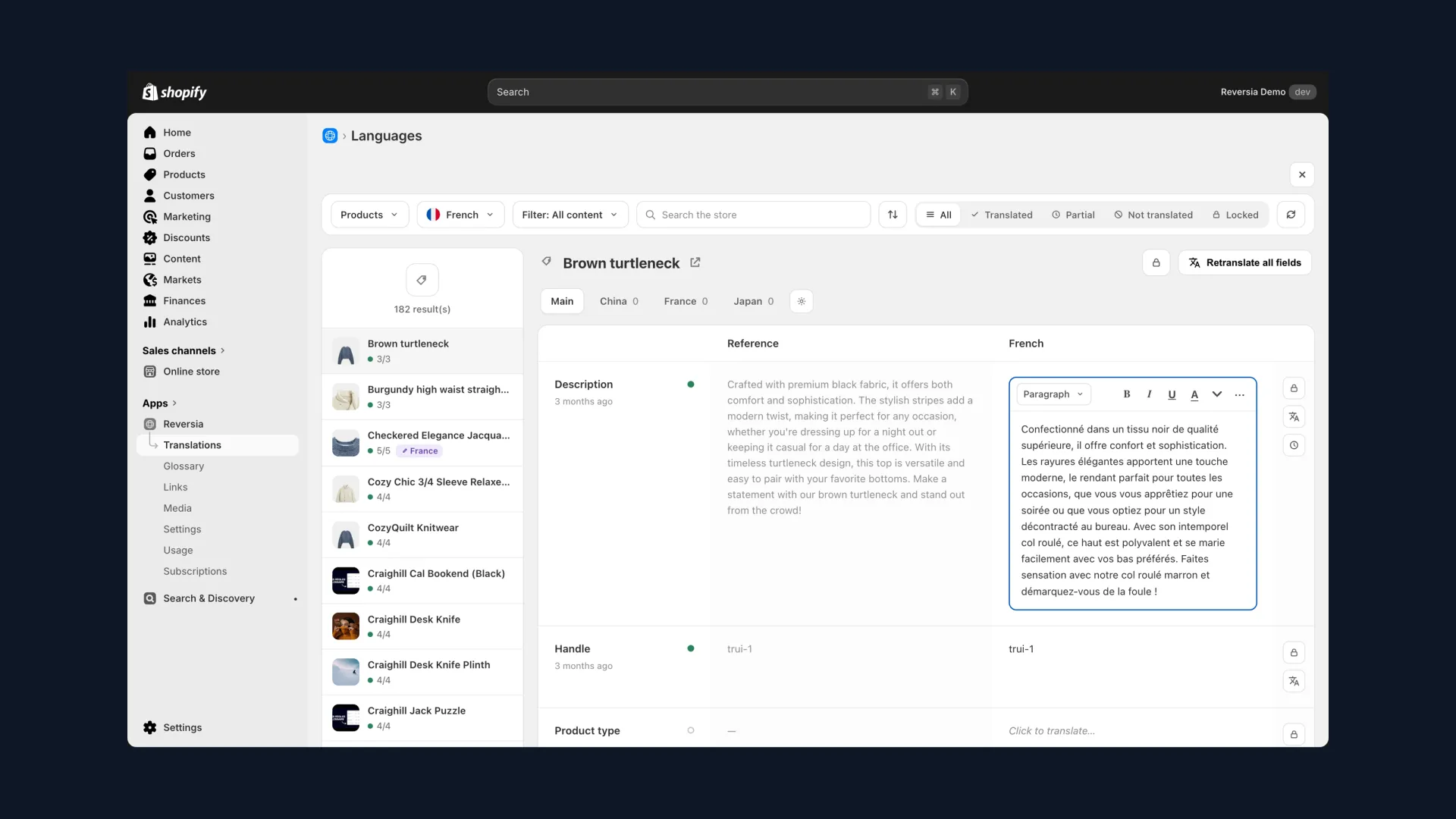
Translate & Adapt is Shopify's official free translation app, and to get started, it does the job. But it hides a ceiling many merchants discover too late: auto-translation stops at two languages.
Want to open a third market? The app won't translate anything automatically anymore. Here's what that limit means in practice, and how to get past it.
The 2-language ceiling of Translate & Adapt
The limit is simple: Translate & Adapt only auto-translates two languages per store, whatever your Shopify plan. Once that quota is used, the app only offers manual input.
- Languages 1 and 2: automatic translation available, resource by resource
- Language 3 and beyond: every field of every product must be filled in by hand, in the side-by-side editor
- Platform-wise, Shopify lets you publish up to 20 languages: the gap between what's possible and what the tool covers widens fast
Yet any serious international strategy goes past two languages. A French merchant targeting Europe quickly adds English, German, Spanish and Italian. By hand, that's weeks of typing, to redo with every new product.
Your options beyond 2 languages
Three possible paths, wildly unequal in effort:
| Option | Effort | Main limitation |
|---|---|---|
| Keep using Translate & Adapt manually | Very high | Field by field, product by product, redone continuously |
| CSV export / import with an external translator | High | Files to manage, provider to pay, round-trips on every update |
| An AI translation app like Reversia | Minimal | Paid, plans from $299/month |
The first two options work for a frozen catalogue and one extra language. As soon as content moves or languages multiply, automation becomes the only sustainable path. Here's how it works with Reversia.
Tutorial: translate all your languages with Reversia
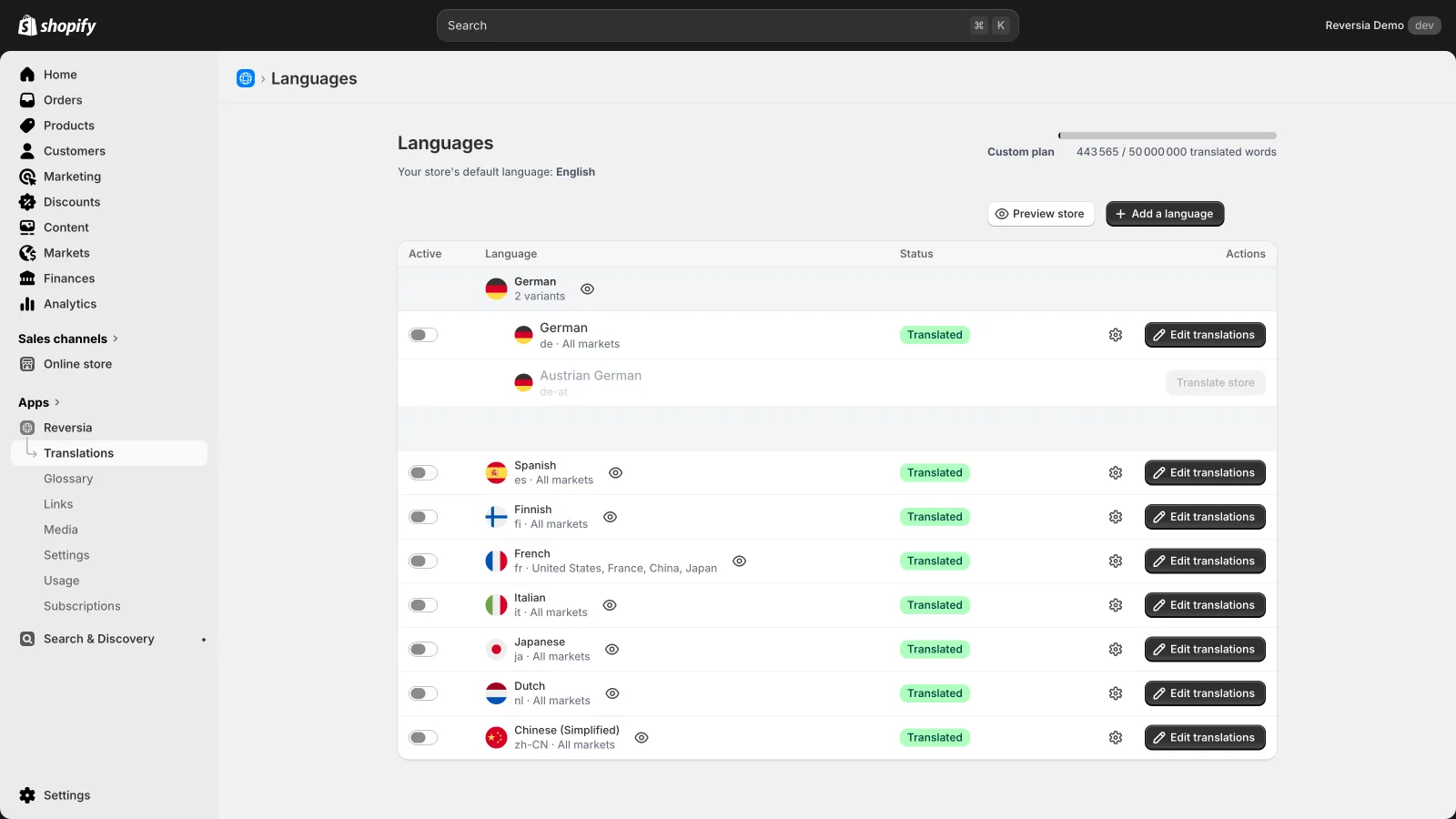
1. Add your languages, with no ceiling
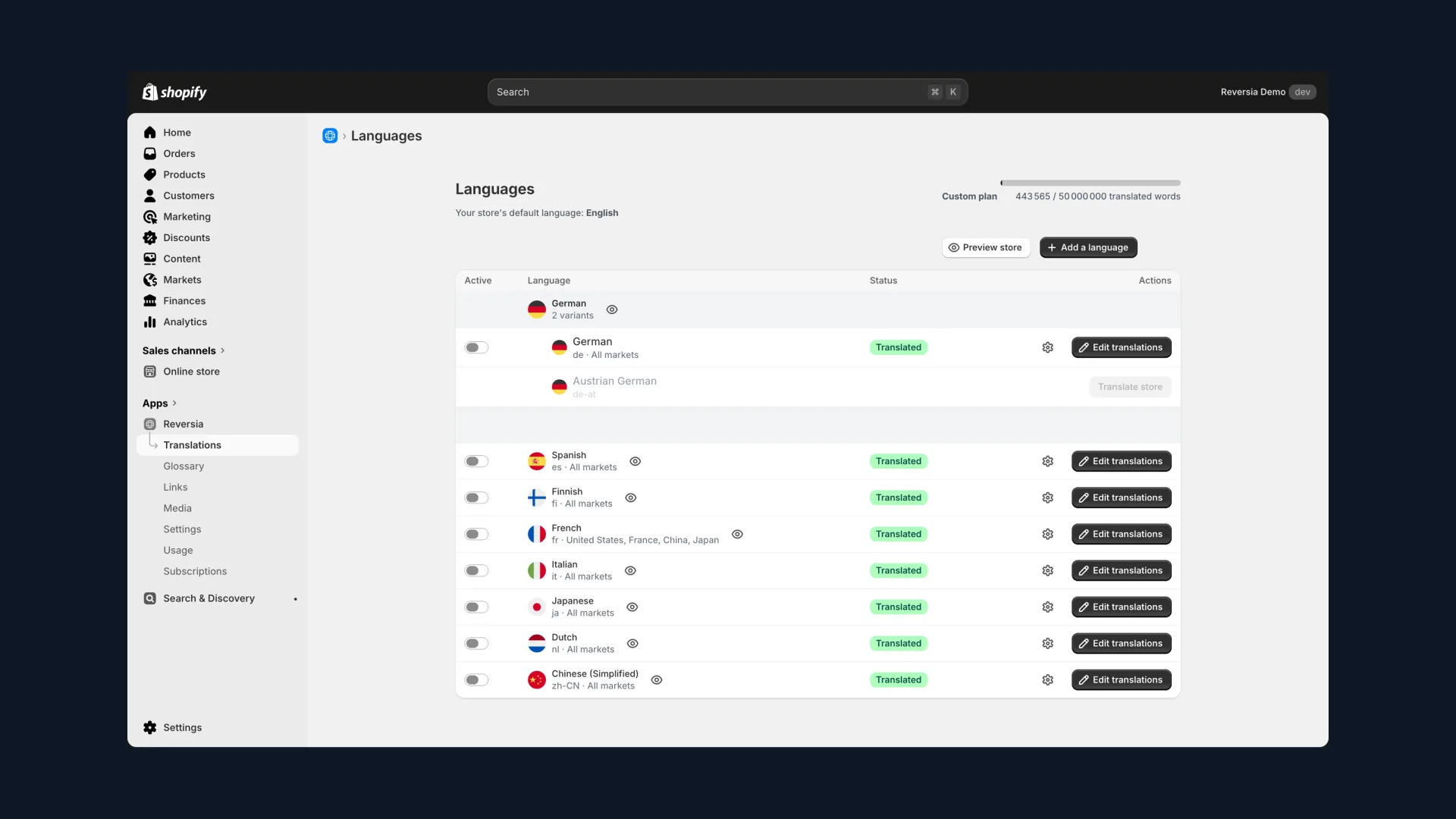
In Reversia, the « Languages » page lists all your store's languages. The « Add a language » button has no quota: two, five or ten languages, including regional variants like Austrian German, up to Shopify's 20-language limit.
- Open Reversia then « Translations » in your Shopify admin.
- Click « Add a language » and pick the target language.
- Assign it to one or more markets (one language can cover several countries).
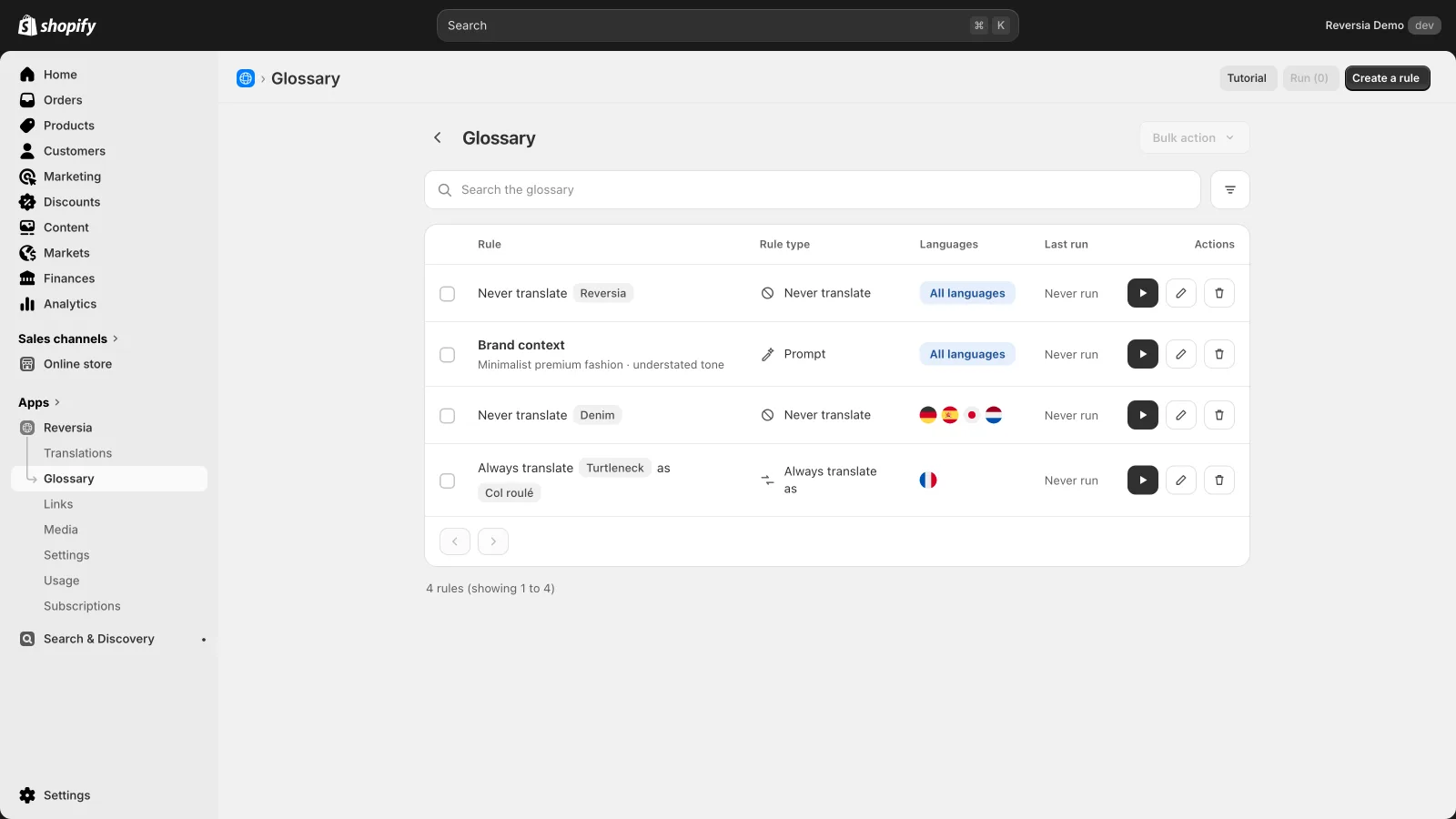
2. Frame quality once and for all
Before launching the translation, the glossary sets your rules for every language at once: terms that must never be translated (your brand names), forced translations, and a context prompt describing your brand and expected tone.
That's the big difference with language-by-language translation: you don't configure five times, you configure once and every new language inherits the rules.
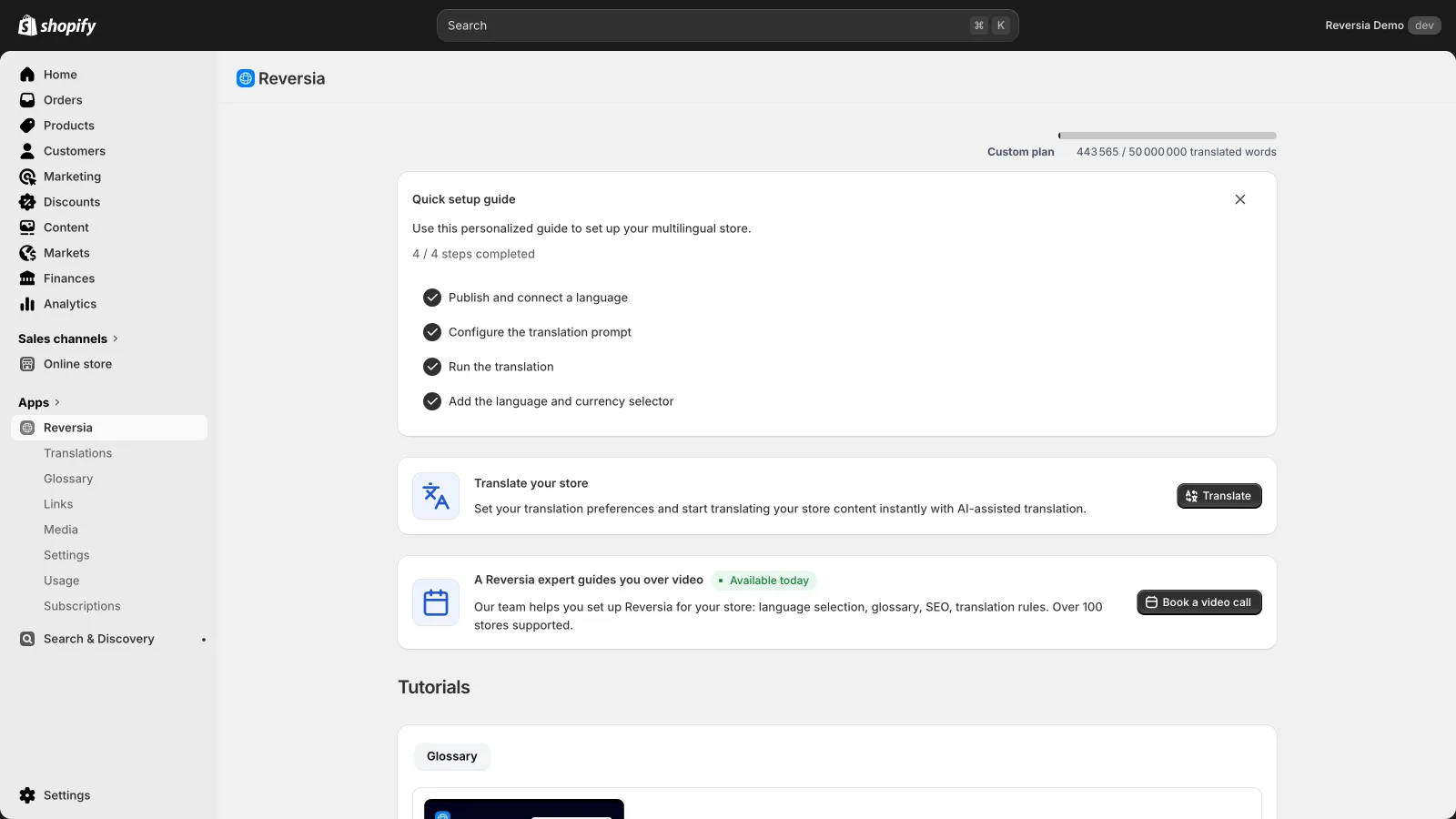
3. Launch the translation, per language or all at once
From the dashboard, « Translate your store » launches the AI translation of all content: products, collections, pages, navigation, checkout, metafields and metaobjects included.
- Click « Translate » from the dashboard or the Languages page.
- Let it run for a few minutes, depending on catalogue size.
- Review what matters in the side-by-side editor, every field stays editable and lockable.
Adding a sixth language later? Same procedure, a few minutes, and the glossary applies automatically. The marginal cost of one more language drops to practically zero.
Translate & Adapt vs Reversia: the comparison
Both tools live in the same Shopify admin and store translations in the same place. The difference is all about automation:
| Translate & Adapt | Reversia | |
|---|---|---|
| Auto-translated languages | 2 maximum | All your Shopify languages |
| Metafields and metaobjects | Manual input | Translated automatically |
| Glossary and brand prompts | No | Yes, applied to every language |
| Localized images per language | No | Yes, products and theme |
| New content | Retranslated by hand | Detected and translated |
| Price | Free | From $299/month |
Translate & Adapt remains a good starting point to test a first market. Once international becomes a strategy, the two-language ceiling turns into a wall, and automation takes over.
FAQ: Translate & Adapt and languages
Can you auto-translate a 3rd language with Translate & Adapt?
No. Translate & Adapt's auto-translation is capped at two languages per store. Beyond that, the app only offers manual input, field by field.
How many languages does Shopify let you publish?
Up to 20 published languages per store, each assignable to one or more markets. The 2-language limit comes from Translate & Adapt, not from Shopify.
What happens to my Translate & Adapt translations if I switch to Reversia?
They're kept. Shopify translations are stored natively in the platform, and Reversia works on that same data: nothing is lost when changing tools.
How long does it take to translate a new language with Reversia?
A few minutes for most stores: Reversia translates all the content automatically, and your glossary rules apply with no extra configuration.