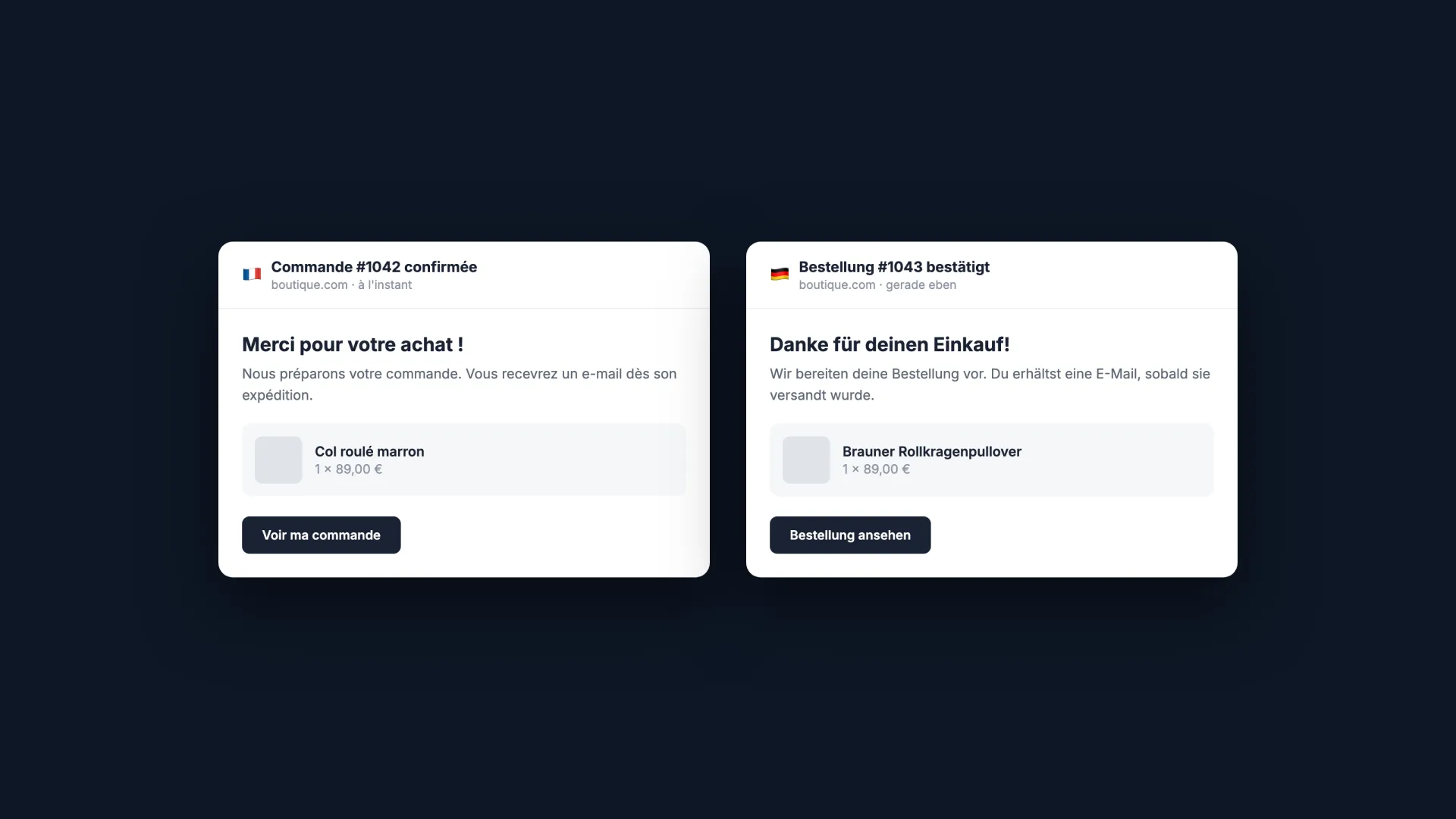
Your store is translated, your German customers order in German… and receive an order confirmation in French. It's the classic blind spot of Shopify translation: transactional emails.
Order confirmation, shipping, refund, password reset: about thirty notifications leave your store automatically. Here's how Shopify picks their language, and the three methods to make sure it's the right one.
How Shopify picks an email's language
All transactional notifications live under « Settings » then « Notifications »: they're Liquid templates, sent automatically on each event. The language mechanics fit in three rules:
- The email's language follows the customer's: the one chosen at checkout, or when signing in to their account
- For the most common published languages, Shopify ships default templates already translated
- As soon as you customize a template, your customization is monolingual: the other languages become your problem
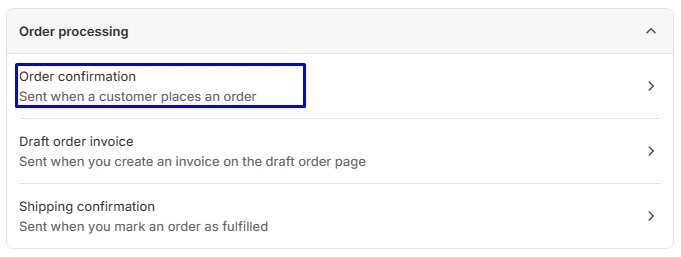
Important scope note: this system only covers Shopify's native notifications. Emails sent by apps, including Shopify Email for marketing campaigns, are translated in each app, not here.
Method 1: stick to the default templates
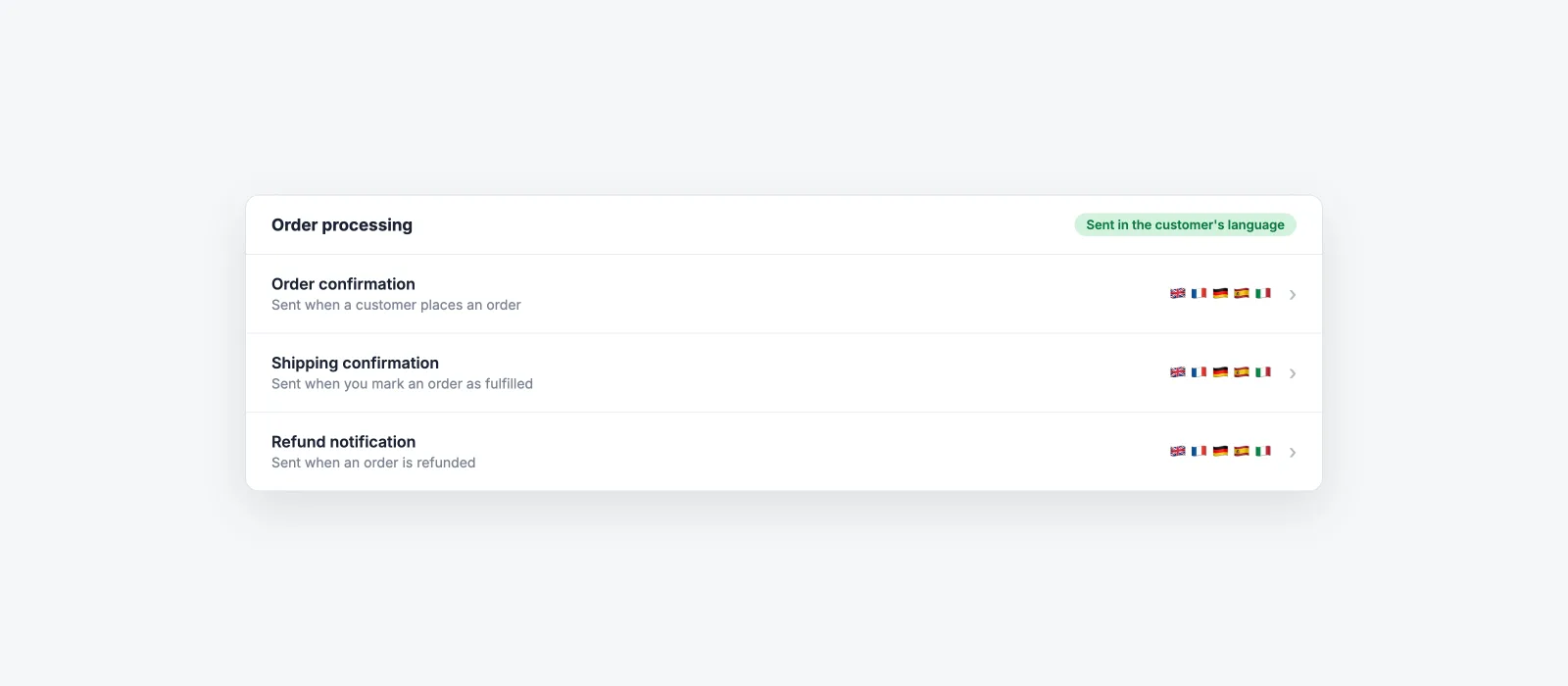
If you've never touched your templates, the best method is to do almost nothing. Shopify's default templates already exist in the common languages, and are sent automatically in the customer's language.
- Check that your languages are published under "Settings" then "Languages"
- Place a test order in another language: the email should arrive translated
- Keep in mind that products and variants appear in the email with their store translations: if they aren't translated, the email will be mixed
That simplicity vanishes with the first customization: one added banner, one edited signature, and the template leaves the default-translations circuit.
Method 2: the Liquid switch for customized templates
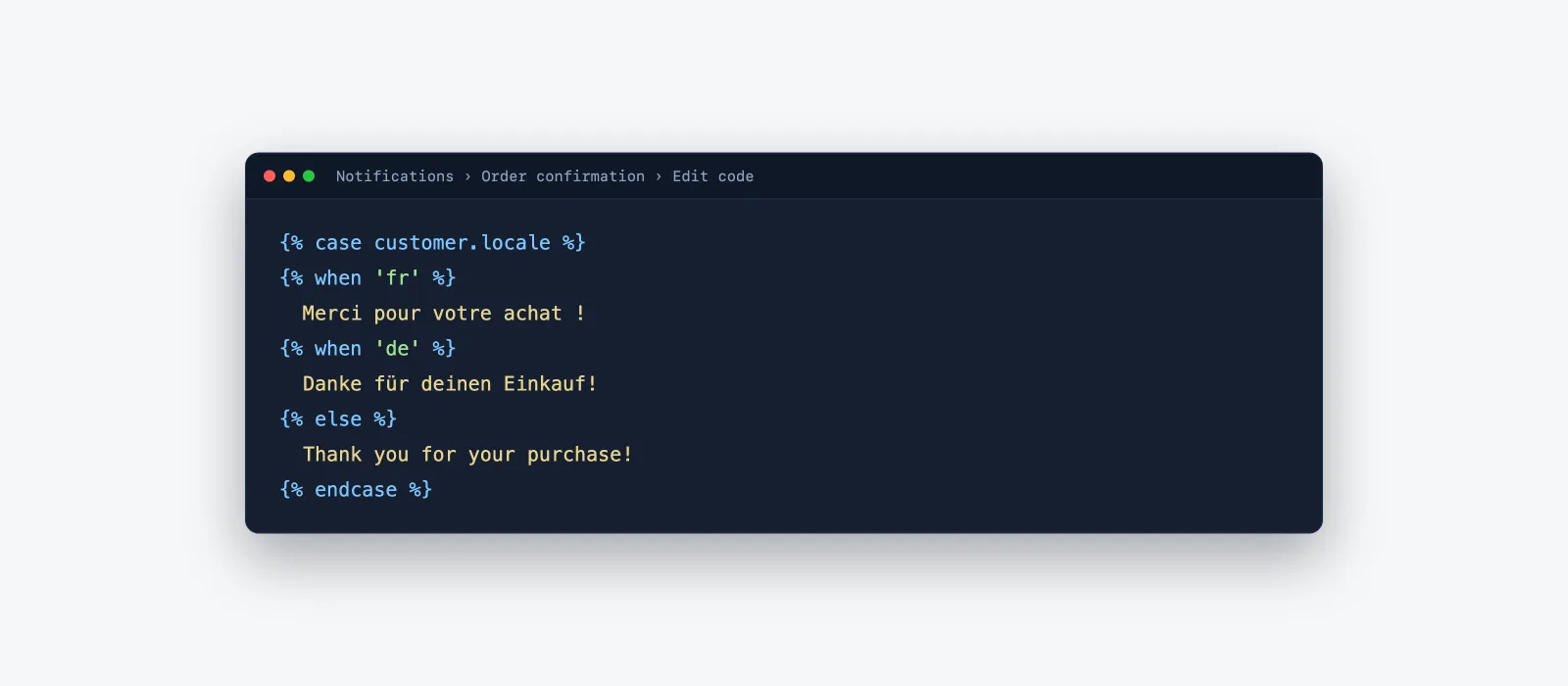
For a customized template, the native solution is to wrap the content in a conditional block that tests the customer's language and serves the right version:
    liquid
    {% case customer.locale %}
{% when 'fr' %}
  Merci pour votre achat !
{% when 'de' %}
  Danke für deinen Einkauf!
{% else %}
  Thank you for your purchase!
{% endcase %}
- Open "Settings", "Notifications", then the email concerned and "Edit code".
- Wrap each text zone in the case block, one branch per published language.
- Repeat for the email subject: it's translated the same way.
- Test with an order in each language before calling it done.
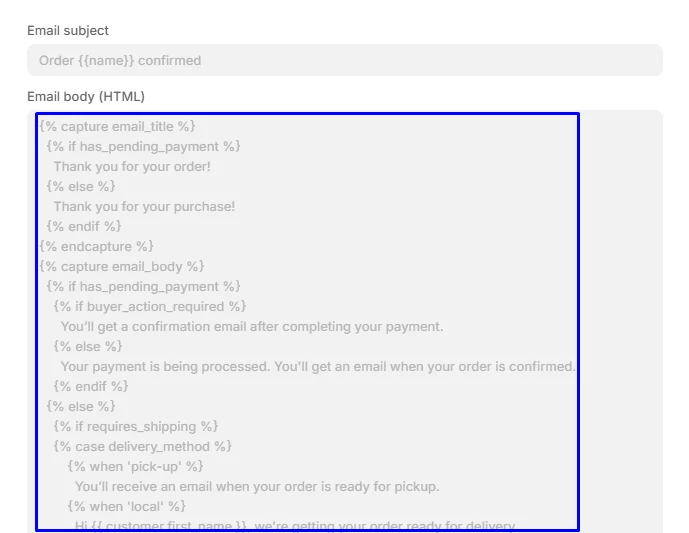
Two precautions: never translate what sits between Liquid tags, and be aware that depending on your translation app, the language variable may differ (some set their own attribute on the order).
Method 3: go through your translation app
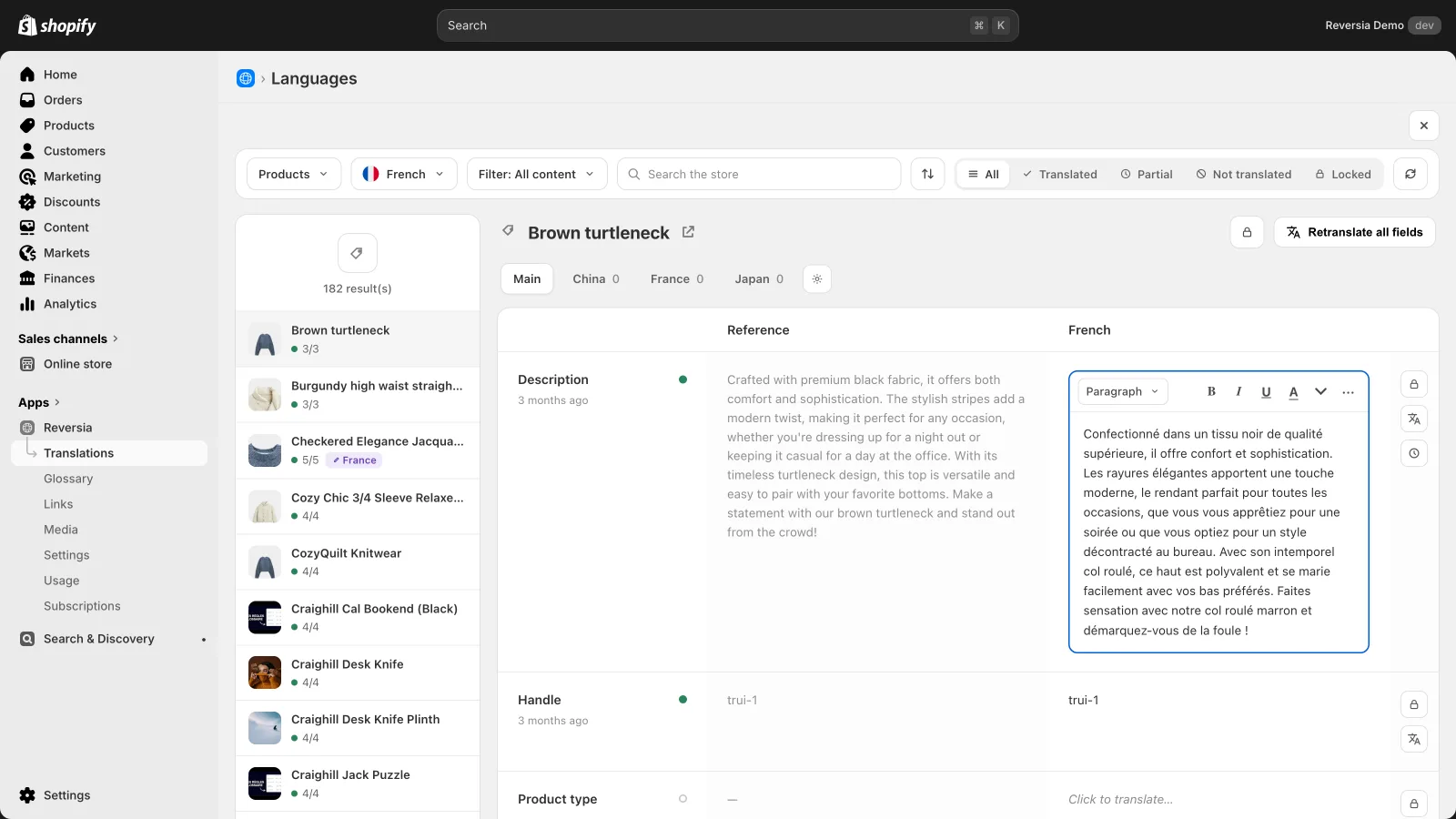
Notifications are part of Shopify's translatable resources: a translation app built on that system covers them like everything else. That's Reversia's approach:
- Notifications are translated with the rest of the store, in all your languages
- Product and variant names quoted in the emails inherit the catalogue's translations: no more mixed emails
- The glossary applies here too: your brand names stay intact down to the email subject
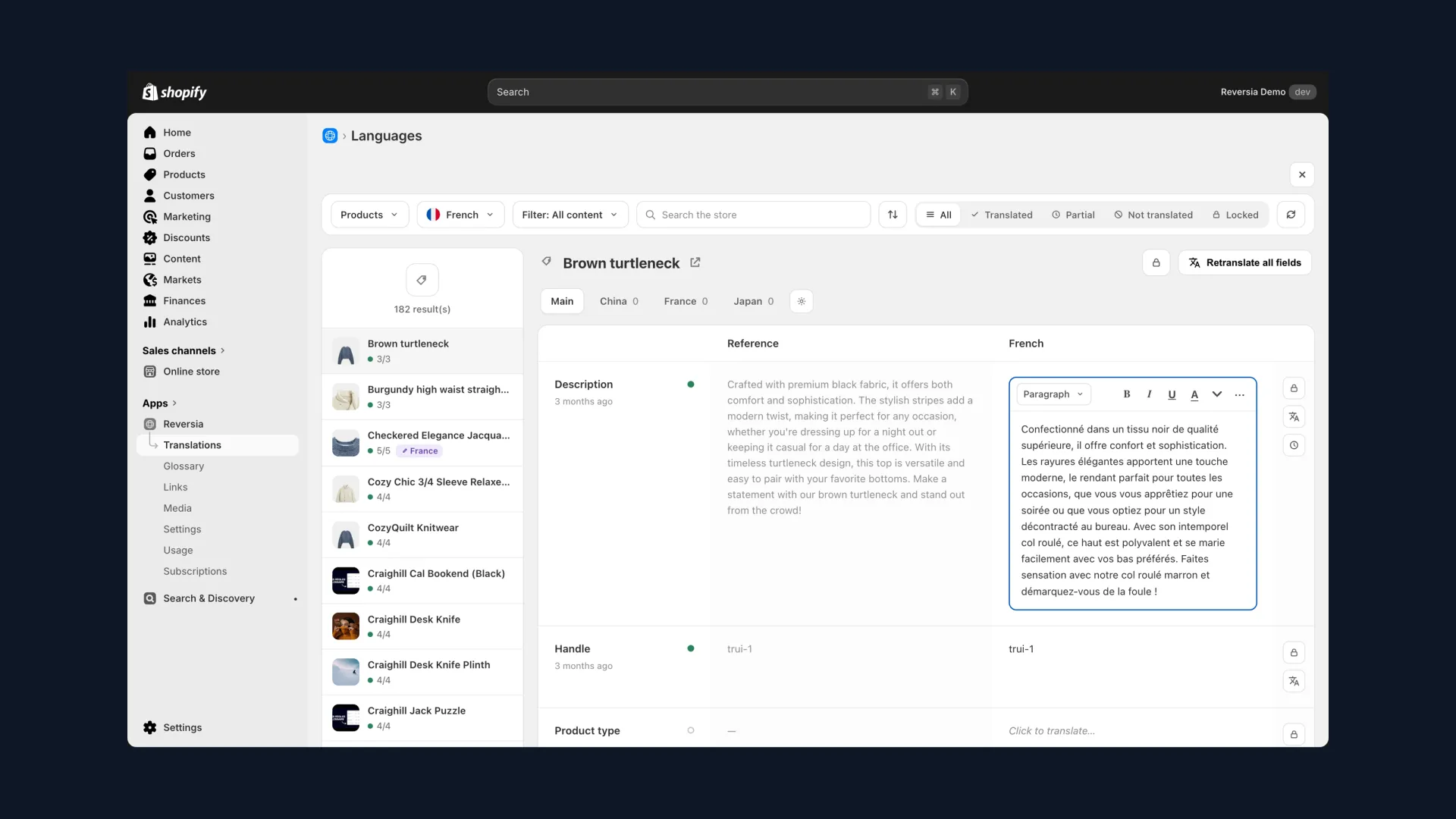
- Every translated template stays reviewable and editable in the editor, without touching the Liquid
The decisive advantage over the Liquid switch: no code to maintain. Add a sixth language and your notifications follow, without reopening a single template.
Which email gets translated where?
The reflex that avoids bad surprises: identify where each email comes from, because each family has its own translation circuit.
| Email type | Examples | Where to translate it |
|---|---|---|
| Native Shopify notifications | Order confirmation, shipping, refund | Settings then Notifications: default templates, Liquid switch or a translation app |
| Marketing campaigns | Newsletters, promotions (Shopify Email, Klaviyo…) | In the emailing tool itself, outside Shopify's translation system |
| Third-party app emails | Reviews, parcel tracking, app abandoned-cart flows | In each app concerned, if it allows it |
One last tip: avoid raw machine translation on notification templates. The mix of HTML, CSS and Liquid breaks easily; always review the rendering after translating.
FAQ: translating Shopify emails
Does Shopify automatically send emails in the customer's language?
Yes, provided the language is published and your templates haven't been customized: the default templates already exist in the common languages, and the language follows the one the customer chose at checkout or on their account.
Can I translate Shopify Email or Klaviyo emails through this system?
No. The notifications system only covers native transactional emails. Marketing campaigns are translated in the emailing tool itself, often by duplicating the campaign per language or segment.
What happens if I've customized my templates?
Your customization replaces the default template and becomes monolingual. You then either handle languages with a Liquid case block, or go through a translation app that covers notifications.
Does Reversia translate notifications?
Yes. Notifications are Shopify translatable resources, and Reversia translates them with the rest of the store, applying your glossary and keeping every template reviewable in the editor.